
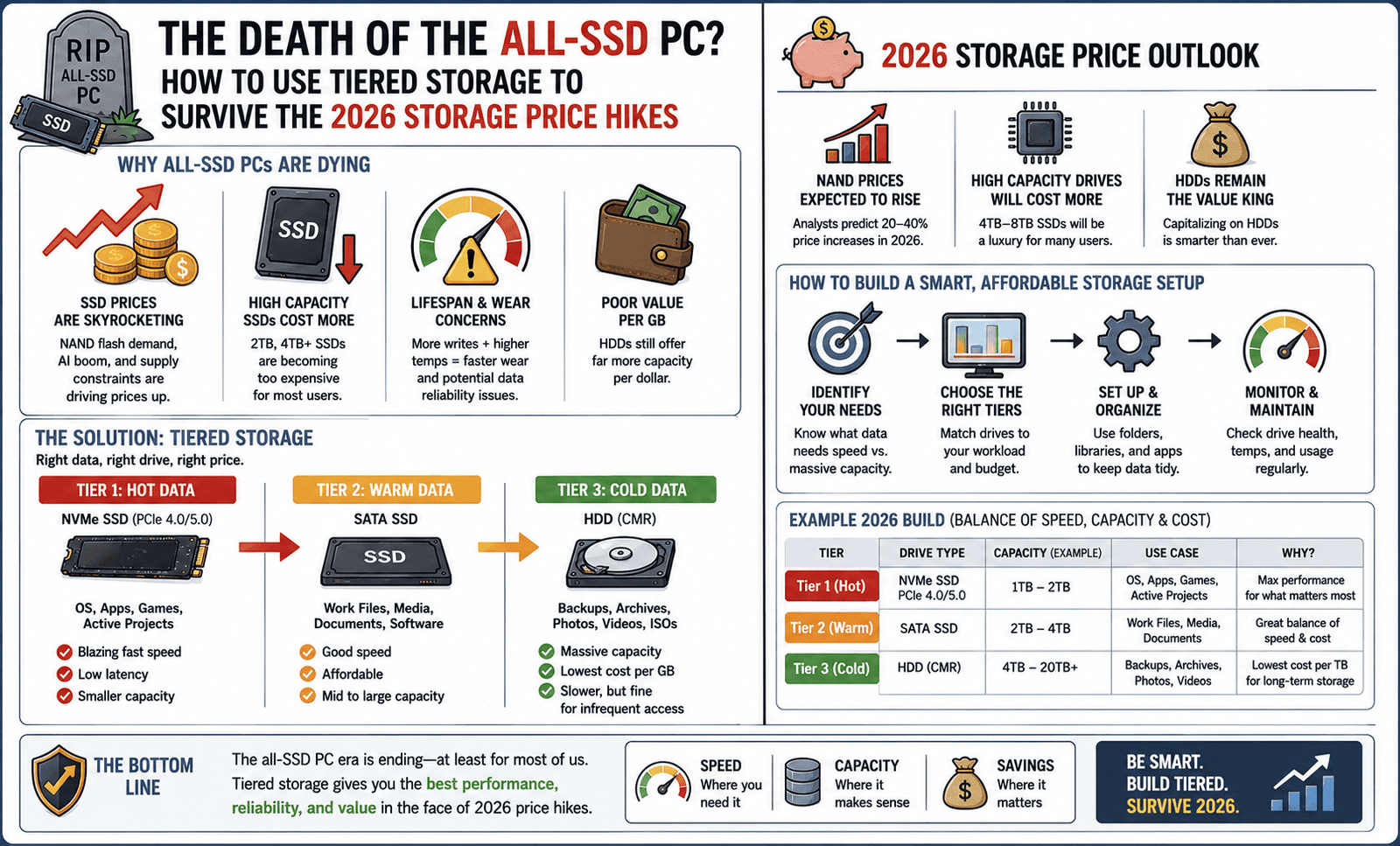
The Death of the All-SSD PC? How to Use Tiered Storage to Survive the 2026 Storage Price Hikes
Remember when we all collectively agreed that mechanical hard drives were dead? For a glorious couple of years, building an “All-SSD PC” wasn’t just a luxury—it was the baseline recommendation. You could grab a fast 2TB NVMe drive for a little over a hundred bucks, throw your operating system, your entire Steam library, and all your media onto it, and never think about a spinning platter again.
Welcome to 2026, where that dream has officially crashed into reality.
Thanks to an unprecedented explosion in AI infrastructure, enterprise tech giants are swallowing up global NAND flash production lines. Because chip makers have shifted focus to high-margin data center drives, consumer storage prices have absolutely skyrocketed. That 2TB NVMe drive you bought a couple of years ago? It has nearly tripled in price.
If you are building a new PC or expanding your current setup on a budget, the all-SSD era is temporarily on pause. To survive the 2026 storage crunch, it’s time to bring back an old-school strategy: Tiered Storage.
The Strategy: What is Tiered Storage?
Tiered storage is simple: you stop treating high-speed NVMe flash like a digital trash can. Instead of throwing everything onto one expensive drive, you divide your data into “Hot,” “Warm,” and “Cold” categories, matching the data to the cheapest, most efficient drive type available.
[ HOT DATA ]  ---> Tier 1: Premium NVMe SSD (OS, Active Apps)
[ WARM DATA ] ---> Tier 2: Budget SATA SSD / QLC (Main Game Library)
[ COLD DATA ] ---> Tier 3: Mechanical HDD (Movies, Photos, Archives)
By structuring your PC this way, you only buy the expensive high-speed flash you actually need, letting cheap mechanical bulk storage handle the rest.
How to Set Up Your 2026 Storage Tiers
Tier 1: The “Hot” Zone (Premium NVMe SSD)
-
What goes here: Your Windows operating system, web browsers, core applications (like Photoshop or Premiere), and the one or two heavy multiplayer games you play every single day.
-
Why: You want your PC to feel snappy. Your OS is constantly writing small background logs and cache files. Putting these on a high-end TLC NVMe drive ensures maximum performance.
-
CrystalDiskInfo Metric to Track: Total Host Writes. Because this drive handles your daily operating system tasks, monitor this metric to ensure your drive’s endurance isn’t degrading faster than the manufacturer’s warranty lifecycle.
Tier 2: The “Warm” Zone (SATA SSD or Budget QLC)
-
What goes here: Your secondary game library. Games that take advantage of fast loading screens but don’t constantly write new data to the disk.
-
Why: SATA SSDs and QLC (Quad-Level Cell) drives are significantly cheaper than flagship Gen 5 NVMe hardware. Since gaming is primarily a reading process rather than a writing process, you won’t wear out a cheaper QLC drive by just playing games off it.
Tier 3: The “Cold” Zone (Mechanical HDD)
-
What goes here: 4K movies, music libraries, family photos, downloaded YouTube videos, and game backups.
-
Why: Mechanical hard drives (HDDs) have become incredibly cheap per gigabyte. A 4TB or 8TB hard drive costs a fraction of an equivalent SSD. A photo or a movie file doesn’t load any faster on a $300 NVMe drive than it does on a cheap spinning hard drive.
Auditing Your Setup Natively in CrystalDiskInfo
Before you go out and buy new hardware, open up CrystalDiskInfo to audit your current PC’s health and usage patterns.
-
Check the Identity: Look at the top drive selection bar. Ensure your primary OS drive is properly identified and running at its optimal interface speed (e.g., PCIe 4.0 or 5.0 x4).
-
Review the Wear Level: Look at the Health Status Percentage. If your main drive is sitting at 95% or higher, it has plenty of life left. If it’s rapidly dropping because you’ve been using it for bulk video downloads, it’s time to offload those files to a mechanical drive immediately.
-
Monitor the Thermals: High-speed drives run hot. If your primary NVMe drive is idling in the yellow or red zone (above 60°C), it is overheating in your case’s ambient heat. Moving static files off it will reduce its active controller workload and drop those dangerous temperatures.
The all-SSD PC isn’t dead forever, but building one right now is a massive strain on your wallet. By stepping back, using a small, high-quality NVMe drive for your core system, and pairing it with large, cost-effective mechanical drives for your bulk archives, you can ride out the 2026 pricing storm without sacrificing the real-world performance of your rig.
Look after the flash memory you already own, keep an eye on your health percentages, and let tiered storage save your PC budget.
Image Blueprint: The Tiered Storage Matrix
To add visual authority to this post, you can create a graphic using this layout in Canva:
-
Background: A sleek, dark tech-themed background (dark gray/black carbon fiber or subtle circuit pattern).
-
Left Side: A clean screenshot of the CrystalDiskInfo dashboard, highlighting the Drive Selection Bar at the top showing three different connected drives: an NVMe SSD (Blue ‘Good’ status), a SATA SSD, and a mechanical HDD.
-
Right Side: A clear visual infographic block with three distinct layers matching the text:
-
Top Box (Gold/Bright Blue): “TIER 1: HOT DATA” -> Icon of an NVMe stick -> Labels: Windows OS, Core Apps, Active Games.
-
Middle Box (Silver/Light Blue): “TIER 2: WARM DATA” -> Icon of a 2.5″ SATA SSD -> Labels: Steam Library, Casual Applications.
-
Bottom Box (Bronze/Dark Blue): “TIER 3: COLD DATA” -> Icon of a 3.5″ Hard Drive HDD -> Labels: 4K Media, Photos, Archives.
-
-
Footer Text: “Optimize your storage budget for the 2026 hardware market.”