
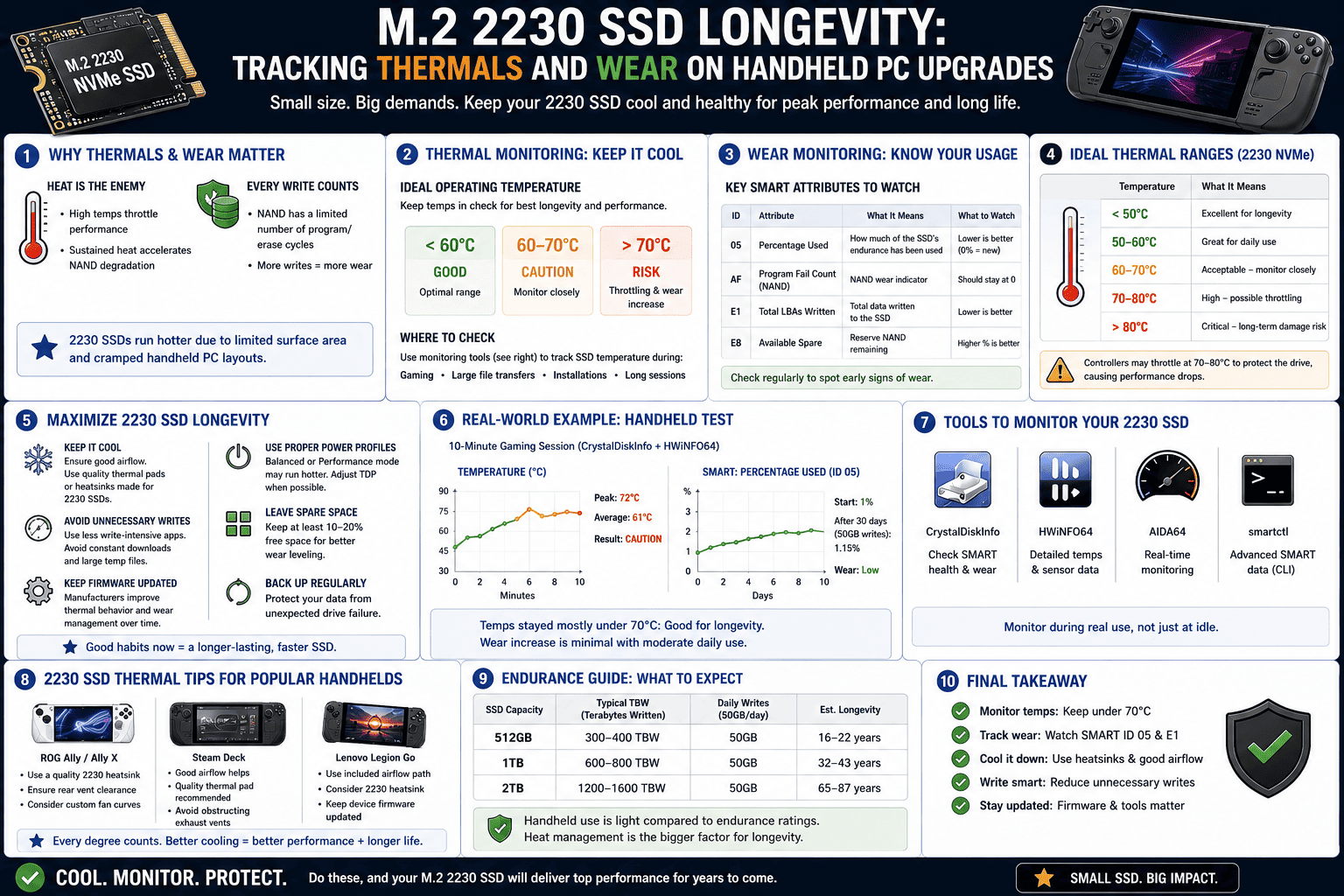
M.2 2230 SSD Longevity: Tracking Thermals and Wear on Handheld PC Upgrades
The handheld gaming revolution has completely rewritten the rules of portable PC gaming. Devices like the Steam Deck, ASUS ROG Ally, and Lenovo Legion Go have made it possible to play hardware-melting AAA titles right in the palm of your hand.
However, because these devices usually ship with restrictive internal storage capacities, the first thing most users do is open them up to install a high-capacity M.2 2230 expansion drive. The market is flooded with these ultra-compact drives, making a 1TB or 2TB upgrade incredibly affordable.
But there is a catch that most surface-level hardware reviews completely ignore: the unique, brutal thermal profile of the micro-form factor. Cramming desktop-class speeds into a drive the size of a postage stamp changes the physics of drive longevity. Here is how these tiny drives handle intense gaming workloads, why they are at high risk of early degradation, and how you can track their health percentage natively across both Windows and Linux interfaces.
The Tiny Furnace: Why M.2 2230 Drives Run So Hot
To understand why micro-form factor storage is vulnerable to premature wear, we have to look at its layout. A standard desktop NVMe SSD uses the longer M.2 2280 form factor (80mm long). This gives the drive plenty of physical surface area to separate the flash controller (the brain that manages the data) from the NAND flash cells (where the data lives).
An M.2 2230 drive is just 30mm long. Because space is at an absolute premium, these are single-sided chips where the controller and the NAND flash are crowded right next to each other, practically touching.
[ Standard 2280 SSD Layout - Spread Out ]
[ Controller ] ─── (Physical Space / Airflow) ───> [ NAND Flash Memory ]

[ Micro 2230 SSD Layout - Crowded ]
[ Controller ][ NAND ]  <─── Direct radiant heat transfer!
When you are playing a graphic-heavy game, the drive is constantly streaming massive high-resolution textures directly to your system RAM. This causes the controller to work at maximum capacity, generating immense radiant heat. On a microscopic 2230 drive, that intense thermal energy bleeds directly into the adjacent NAND cells.
Prolonged exposure to temperatures fluctuating between 65°C and 75°C inside a cramped handheld chassis drastically accelerates the electrical degradation of the flash memory. Over time, this extreme thermal stress leads to early read/write errors, dropping your drive straight toward a yellow “Caution” health alert.
How to Check Your Handheld’s SSD Health Percentage Natively
To avoid a sudden drive crash that wipes out all your game saves and configurations, you need to monitor your drive’s health status. Depending on the operating system your handheld runs, here is how to pull the native telemetry data:
1. For Windows Handhelds (ROG Ally, Legion Go, MSI Claw)
Because these devices run a standard version of Windows, checking your metrics is incredibly straightforward:
-
Download CrystalDiskInfo: Download the Standard Edition directly onto your handheld device.
-
Audit the Dashboard: Launch the app. Pay immediate attention to the Health Status Percentage and the Temperature badge.
-
The In-Game Test: Keep CrystalDiskInfo running in the background, launch a demanding game for 20 minutes, then quickly alt-tab back to the desktop. If your active temperature is flashing red (above 70°C), your drive is actively thermal throttling to protect itself, meaning your game load times are taking a severe performance hit.
2. For Linux Handhelds (Steam Deck / SteamOS)
The Steam Deck runs a customized, Linux-based operating system. While you can’t double-click a Windows .exe file natively, SteamOS has built-in diagnostic tools hidden inside its desktop interface:
-
Switch to Desktop Mode: Hold down the Power Button on your Steam Deck and select Switch to Desktop.
-
Open the System Menu: Click the application launcher icon in the bottom-left corner (similar to the Windows Start Menu).
-
Launch KDiskMark or KDE Partition Manager: Navigate to the System or Utilities folder and open KDE Partition Manager.
-
Read the S.M.A.R.T. Logs: Select your primary internal NVMe drive from the left panel, right-click it, and select Smart Status.
This interface pulls the exact same raw cryptographic firmware logs that CrystalDiskInfo reads on a desktop PC. Look closely at the raw hex values for Available Spare and Percentage Used to know exactly how much structural life your compact drive has left.
Step-by-Step Guide to Extend Your 2230 SSD’s Lifespan
If your diagnostic audit shows your handheld drive is running dangerously hot, follow these immediate preventative steps to keep it from dying prematurely:
-
Never Use a Bare Drive: If your replacement 2230 drive didn’t come wrapped in a thin copper heat shield or a thermal foil pad, buy one immediately. A simple 0.5mm copper shim helps disperse radiant heat away from the controller, dropping peak temperatures by up to 8°C.
-
Optimize the Handheld’s Fan Curve: Don’t rely purely on default “Silent” power profiles. Using a custom manual fan curve inside ASUS Armoury Crate or SteamOS settings to push slightly higher fan speeds during heavy gaming will cool down the entire internal chassis, saving your storage drive from baking in ambient heat.
-
Offload Non-Essential Games to a High-Speed MicroSD: Do not use your primary NVMe drive for everything. Heavy AAA titles that rely on continuous asset streaming belong on the internal SSD, but older indie titles, emulators, and ROM archives run perfectly fine off a high-quality MicroSD card. This keeps your internal drive’s active write cycles low, preserving its precious TBW (Terabytes Written) threshold.
The Bottom Line
Upgrading your handheld PC’s storage is an incredible quality-of-life improvement, but micro-form factor components require strict oversight. Don’t let your microscopic drive cook itself to death behind a screen. Flip over to your desktop layer periodically, audit your diagnostic health tools, keep your thermals under control, and ensure your handheld setup stays running perfectly for years to come!