
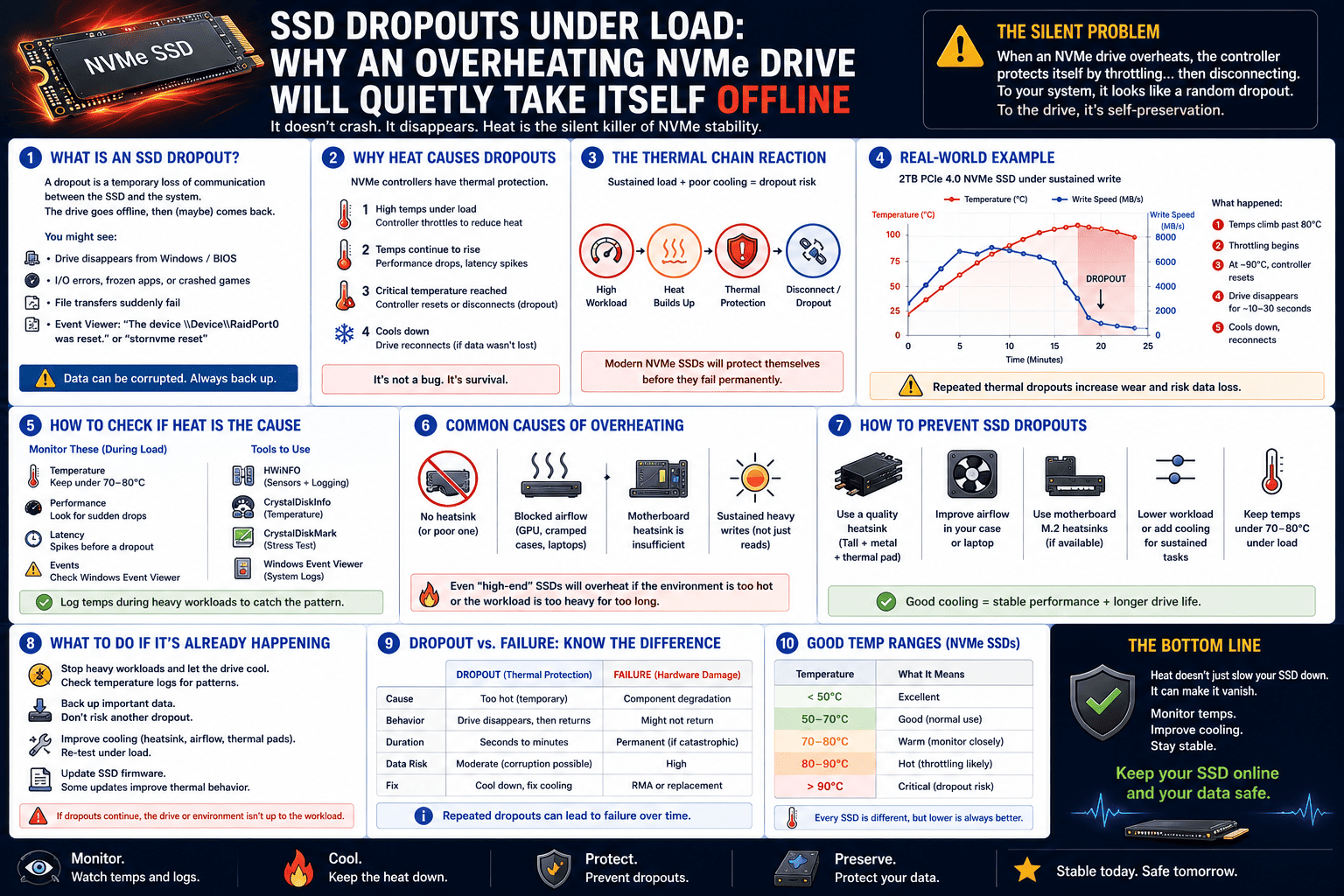
SSD Dropouts Under Load: Why an Overheating NVMe Drive Will Quietly Take Itself Offline
You are right in the middle of a heavy workflow—maybe you are rendering a massive multi-layered 4K video project, compiling a massive code repository, or running a local AI generation script. Suddenly, the application freezes. You open up Windows File Explorer, and your jaw drops: your secondary NVMe drive has completely vanished.
It isn’t just unreadable; it’s completely gone from your system as if you physically ripped it out of the motherboard. You restart your PC, and like magic, the drive is back as if nothing ever happened. Until the next time you put it under a heavy load.
When an SSD quietly takes itself offline like a ghost, most users immediately assume the drive is broken and file for a warranty replacement. But nine times out of ten, your SSD isn’t dead. It’s invoking a high-stakes emergency survival protocol: Thermal Emergency Shutdown.
Here is why your high-speed drive is vanishing mid-task and how to configure CrystalDiskInfo to prevent it from ever happening again.
The Panic Button: What is a Thermal Emergency Shutdown?
We all know about thermal throttling—when an NVMe drive gets too hot (usually around 70°C to 75°C), the internal controller intentionally slashes its operating speeds to cool down. It’s the equivalent of a runner slowing down to a walk because they are overheating.
But what happens when slowing down isn’t enough?
Modern Gen 4 and Gen 5 SSD controllers pull an immense amount of power under sustained workloads (up to 11.5 watts). If a drive is trapped in a case with stagnant airflow, or tucked directly beneath a giant graphics card radiating 300 watts of heat, the SSD controller will rapidly spiral out of control.
When the internal temperature sensor breaches a hard-coded critical threshold—typically 80°C to 85°C—the controller hits the panic button.
[ Normal Operation: Below 60°C ]  ──> Peak Speeds
[ Thermal Throttling: 70°C - 75°C ] ──> Speeds Slashed by 50%+
[ Emergency Shutdown: 80°C - 85°C ] ──> Controller cuts power entirely to save data!
To protect your data from permanent structural corruption caused by melting silicon, the controller instantly cuts all power and forces a hard reset. Because the link to the PCIe bus is severed instantly, Windows thinks the hardware was physically unplugged. The drive stays offline until you cycle the system’s power, cooling the controller down enough to allow it to boot safely again.
How to Set Up Real-Time Temperature Alerts in CrystalDiskInfo
You shouldn’t wait for your drive to drop offline to realize it’s cooking. You can use CrystalDiskInfo’s native background daemon to alert you the exact millisecond your NVMe drive crosses into the danger zone.
Here is how to configure an automated early warning system:
The Fix: How to Stop the Dropouts
If your real-time alerts confirm that your drive is spiking into the high 70s under load, you need to intervene physically before the constant emergency shutdowns degrade the drive’s health status.
1. Fix the Radiant Heat Problem
Take a look inside your PC case. Is your secondary NVMe drive sitting directly underneath your graphics card’s exhaust fans? If so, the SSD is acting like a sponge for your GPU’s discarded heat. Move the drive to an alternate M.2 slot on your motherboard that is located above the graphics card or away from the direct exhaust zone.
2. Ditch the “Decorative” Heat Shields
Many motherboards come with sleek, thin metal covers meant to hide your SSDs for aesthetics. However, if these shields don’t have high-quality thermal pads, or if they trap heat without direct airflow passing over them, they act like tiny ovens. Upgrade to a dedicated, high-surface-area third-party passive heatsink with deep cooling fins, or look into a low-profile active fan block.
3. Change Your Windows Power Settings
If you are running sustained read/write tasks, navigate to your advanced Windows Power Plan settings. Ensure that Link State Power Management under the PCI Express tree is set to Moderate Power Savings or Off instead of Maximum Power Savings. Aggressive power cycling can confuse a hot controller, triggering accidental communication dropouts.
The Bottom Line
An SSD that vanishes under load is screaming for help, not necessarily dying. By leveraging CrystalDiskInfo’s background monitoring features, you can catch thermal spikes long before they trigger a hard hardware cutoff. Keep your airflow moving, treat your controller to a proper heatsink, and keep your next-gen storage out of the red zone!