
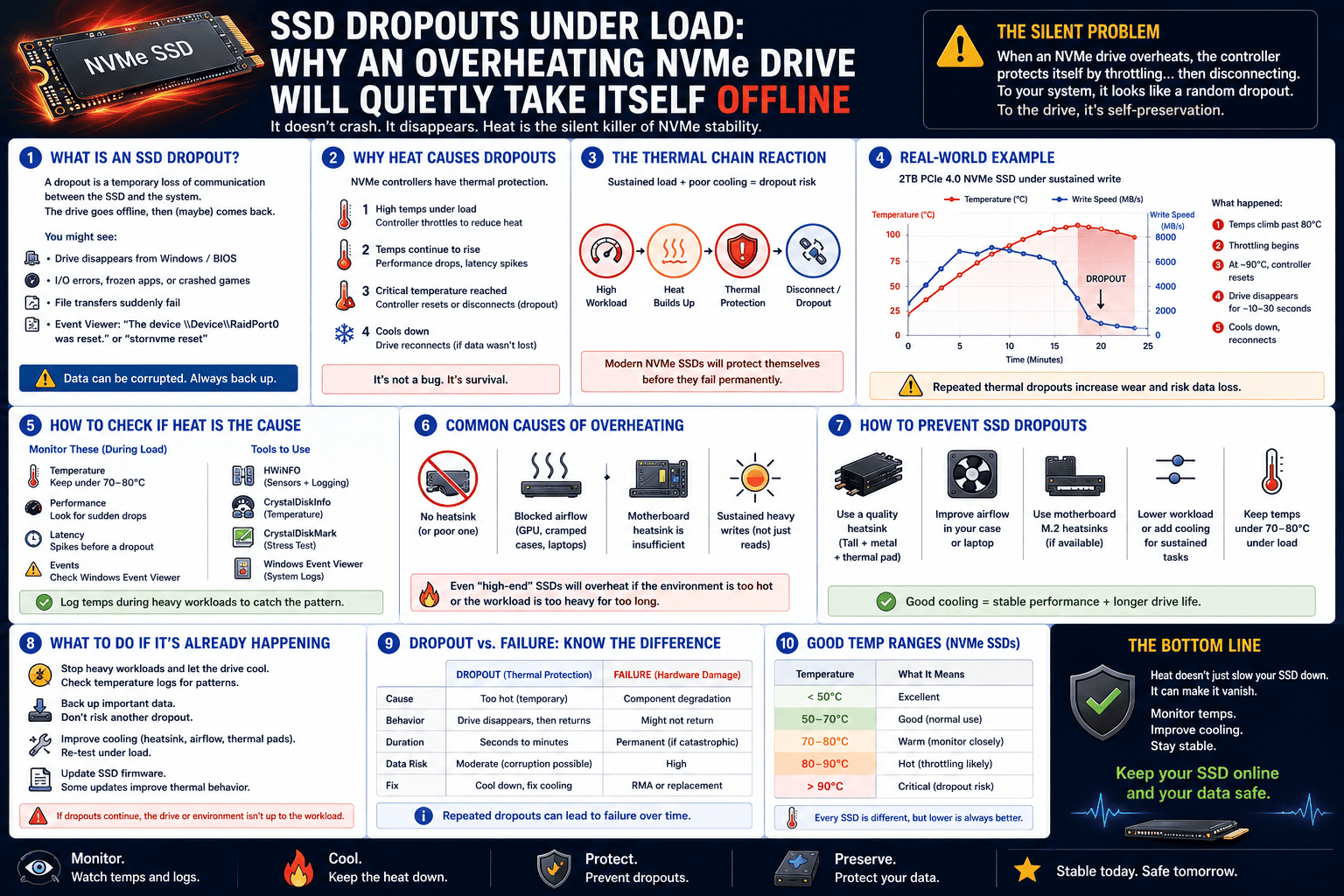
The Lane-Sharing Nightmare: Why Adding a Second NVMe Drive Could Cut Your GPU Performance in Half
You spent weeks picking out the perfect components for your PC. You scored a top-tier graphics card, paired it with a high-end processor, and installed a blistering-fast primary NVMe SSD. A year down the road, your storage fills up. You grab a second high-speed M.2 drive, click it into the open slot right below your graphics card, and boot up your PC.
Your storage space is doubled, but something feels off. Your frame rates in heavy games have taken a mysterious dip, and benchmarks show your GPU isn’t performing quite like it used to.
You didn’t break anything, and your graphics card isn’t dying. You have just run face-first into the single biggest hidden trap in modern motherboard design: PCIe Lane-Sharing.
Before you assume your hardware is defective, let’s look at how motherboards route data traffic, why your new storage drive might be starving your GPU of bandwidth, and how to spot the bottleneck using CrystalDiskInfo.
The Traffic Cop: Understanding PCIe Lanes
Think of your CPU as a massive city center and your components (the GPU and SSDs) as surrounding towns. PCIe lanes are the physical highways connecting them.
Modern consumer processors (like the latest AMD Ryzen or Intel Core platforms) have a strictly limited number of direct “CPU PCIe lanes”—usually only 20 to 24 lanes total.
In a standard, optimal setup, the lanes are perfectly divided:
-
x16 lanes go directly to the primary PCIe slot to give your graphics card maximum breathing room.
-
x4 lanes go directly to the primary M.2 slot for your blazing-fast operating system drive.
[ CPU: 20 Direct Lanes ]
  ├─── 16 Lanes ───> Primary PCIe Slot (GPU at Full x16 Speed)
  └───  4 Lanes ───> Primary M.2 Slot (OS SSD at Full x4 Speed)
This accounts for all 20 direct CPU lanes. But modern motherboards ship with three, four, or even five M.2 slots. Where do the lanes for those extra storage drives come from?
The Nightmare: The Bifurcation Split
To give you more M.2 slots, motherboard manufacturers use a method called bifurcation (lane-sharing). When you plug a second NVMe drive into specific secondary M.2 slots, the motherboard is forced to physically steal bandwidth away from the primary graphics card slot to feed the new drive.
Instead of running at its native x16 speed, the primary PCIe slot is instantly cut in half to x8 speed so the secondary M.2 slot can have its required x4 lanes.
[ Lane-Sharing Active ]
CPU Main Slot ───> Splits into: [ GPU at x8 Speed ] + [ Secondary NVMe at x4 Speed ]
While running a modern high-end graphics card at x8 bandwidth instead of x16 might only cause a minor frame rate drop on older Gen 4 setups, the bottleneck becomes massive if you are running heavy data-streaming pipelines, rendering complex 3D scenes, or utilizing DirectStorage in modern games. You paid for 100% of your GPU’s processing power, but a single layout choice slashed its pipeline in half.
How to Diagnose the Bottleneck via CrystalDiskInfo
You don’t need to open your PC case or guess if your hardware is sharing lanes. You can check the exact physical connection matrix using CrystalDiskInfo.
Open the app and select your secondary NVMe drive from the top selection bar. Look directly at the line labeled Transfer Mode.
http://googleusercontent.com/image_generation_content/7
Caption: Analyzing the Transfer Mode property in CrystalDiskInfo. The interface displays the current active operating speed on the left, separated by a vertical pipe from the drive’s maximum structural hardware specification on the right.
How to Read the Transfer Mode Line:
-
Optimal Status (
PCIe 4.0 x4 | PCIe 4.0 x4): If both sides match perfectly, your drive is running at its maximum structural bandwidth. If this drive is routed through the motherboard’s chipset instead of sharing CPU lanes, your GPU remains completely unbottlenecked at x16. -
The Bottleneck Status (
PCIe 4.0 x2 | PCIe 4.0 x4): If the left side shows x2 while the right side shows x4, it means your drive has been down-mapped. The motherboard has choked the drive’s bandwidth to avoid splitting the GPU lanes, or it’s trapped in a low-priority slot. -
The Hidden Trap (
PCIe 5.0 x4 | PCIe 5.0 x4on a Shared Slot): If you install a Gen 5 drive into a shared slot, the drive will look completely healthy at x4, but checking your GPU’s status in a tool like GPU-Z will reveal that the graphics card slot has dropped to x8.
How to Fix and Avoid Lane-Sharing Conflict
If your motherboard manual or diagnostic tools confirm that your storage expansion is starving your graphics card, follow these steps to restore your GPU’s performance:
1. Read the Motherboard Block Diagram
Before plugging in a drive, look at the manual’s “Storage Configuration” page. Avoid any M.2 slot labeled with warnings like “M2_2 shares bandwidth with PCIE_1.”
2. Move the Second Drive to Chipset-Routed Slots
Most mid-to-high-end motherboards route the bottom M.2 slots through the Motherboard Chipset rather than directly to the CPU. While passing through the chipset introduces a tiny bit of microsecond latency compared to a direct CPU link, it keeps your primary CPU lanes completely untouched. Your GPU stays at full x16 speed, and you still get full use of your expansion storage.
3. Consider a High-Capacity Single Drive Strategy
With retail inventory constraints making multiple small drives less cost-effective, the best way to avoid lane configurations entirely is to buy a single, high-capacity primary drive (like a 2TB or 4TB TLC NVMe). This keeps your secondary slots completely empty, ensuring your graphics card maintains an uninterrupted link directly to your processor.
The Bottom Line
A powerful PC is only as fast as its narrowest data lane. Don’t let a blind storage upgrade create an artificial bottleneck inside your system. Audit your hardware links with CrystalDiskInfo, route your secondary drives through the chipset slots, and ensure your graphics card has the wide-open highway it needs to deliver peak performance!