
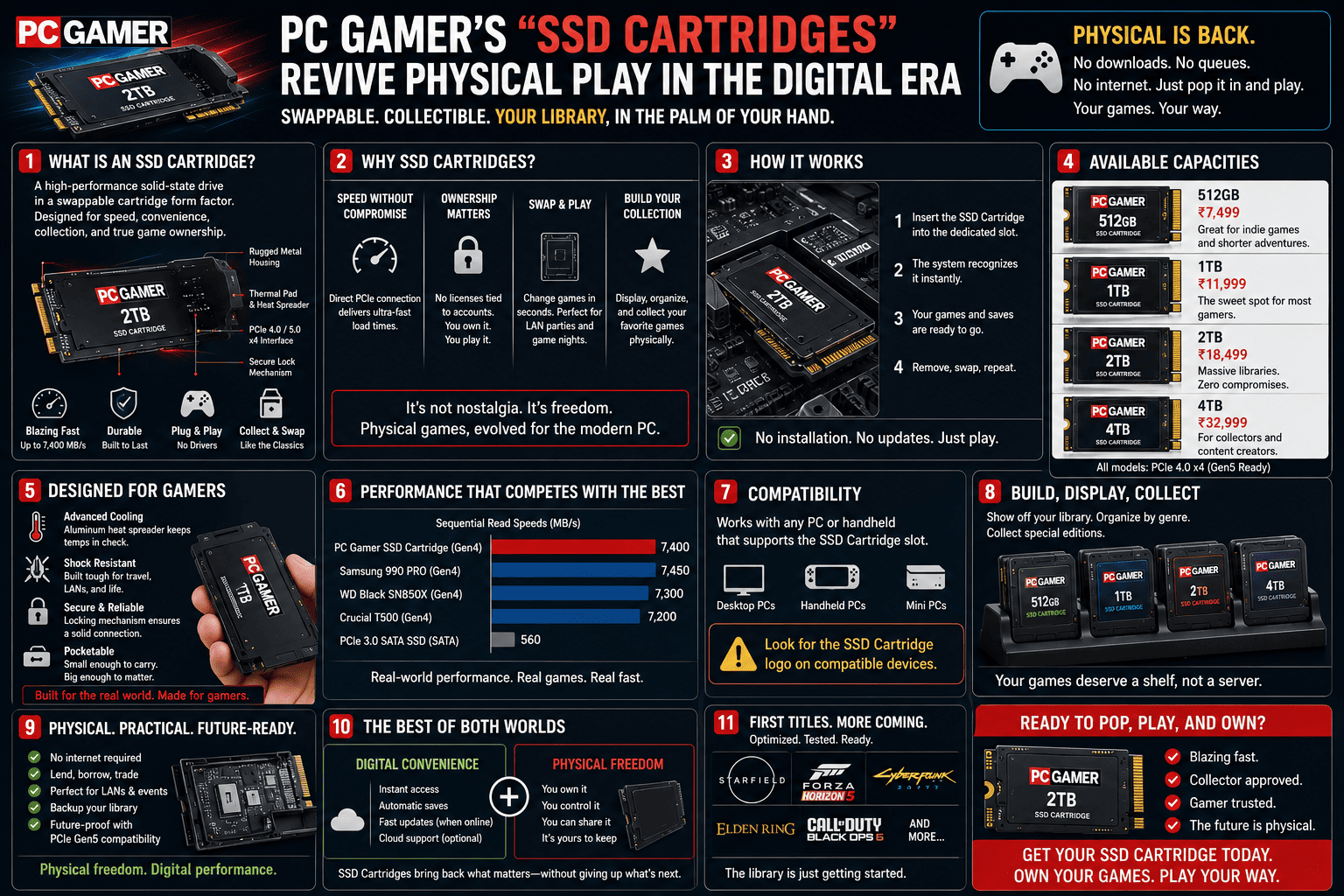
PC Gamer’s “SSD Cartridges” Revive Physical Play in the Digital Era
As physical media continues its slow fade from store shelves, the gaming world finds itself at a strange crossroads. Digital storefronts offer convenience, but they leave players with a distinct sense of ghost ownership—you pay full price for a title, but you are ultimately licensing a digital file that can be patched, altered, or delisted overnight.
Enter the DIY PC hardware community. A viral project posted by Redditor Jibril-sama on r/pcmasterrace has captured the imagination of gamers everywhere: Steam Game Cartridges built from cheap, repurposed 2.5-inch SATA SSDs.
By housing inexpensive 128GB solid-state drives inside custom 3D-printed shells with printed box art, this project recreates the tactile joy of grabbing a physical cartridge, clicking it into a dock, and watching a game load on screen.
While it isn’t true DRM-free game preservation, it is a brilliant exercise in storage engineering. Let’s break down how this custom cartridge system works under the hood, the performance trade-offs of using older SATA drives, and what it takes to maintain SSD health when treating drives like Game Boy carts.
How the “Steam Cartridge” System Works Under the Hood
The appeal of a traditional console cartridge is immediate plug-and-play access. You insert the media, the system reads the chip, and the title launches without menus or setup friction.
Recreating that seamless experience on a desktop PC requires bridging the physical hardware link with background operating system scripts. Here is how the developer made it happen on a Linux-based setup:
[ Insert 2.5" SATA SSD ] ──> [ USB/SATA Dock ] ──> [ OS udev Event Detected ]
                                                          │
[ Launch Game / Navigate Page ] <── [ Steam URL Protocol ] <── [ Systemd Daemon Executable ]
-
The Physical Handshake: The 2.5-inch SSD is slotted into a top-loading USB-to-SATA desktop dock.
-
Event Detection (
udev): The operating system immediately recognizes the new block device hitting the SATA controller bus. -
Daemon Execution (
systemd): A custom background script checks the newly mounted drive’s root folder for a specific, trusted startup file. -
Steam Navigation: Using Valve’s native Steam URL Protocol (e.g.,
steam://run/[app_id]), the script automatically commands Steam to navigate directly to the game’s library page or launch the title instantly.
The Technical Bottlenecks: Can a SATA Cartridge Keep Up?
Using cheap $8 bulk-purchased 128GB SATA SSDs for individual games is a fun, budget-friendly retro flex, but it introduces several performance variables when applied to modern PC hardware.
1. The SATA III Speed Cap
A standard 2.5-inch SATA III SSD hits a physical speed limit of roughly 550 MB/s. For indie games, older classics, or mid-tier titles, 550 MB/s is more than enough bandwidth to deliver sub-10-second loading screens. However, for modern AAA titles that rely on continuous asset streaming (or DirectStorage frameworks), a SATA drive can create minor texture-pop-in compared to an internal PCIe Gen 4 NVMe drive capable of 7,000 MB/s.
2. Drive Endurance and “Cold Storage” Data Loss
The biggest technical hurdle with treating SSDs like classic plastic cartridges comes down to NAND flash physics:
-
Read-Heavy Usage is Great for Endurance: Games are written to the cartridge once, meaning you consume very few write cycles over the lifetime of the drive. The cell endurance (TBW) is barely touched.
-
The Charge Leakage Risk: Unlike traditional read-only mask ROMs used in old Super Nintendo or Game Boy cartridges, flash memory cells rely on trapped electrical charges inside floating-gate transistors. If an SSD is left unplugged in a drawer without power for several years, those electrical charges can slowly leak, leading to data degradation or corrupted files.
How to Audit & Maintain External “Cartridge” Drives
If you want to build your own physical library out of spare SATA or external NVMe drives, keeping tabs on drive health is essential. You don’t want to plug a cartridge in after two years only to find a corrupted installation.
Here is how to monitor your external drives in CrystalDiskInfo:
-
Enable USB Search: Open CrystalDiskInfo, navigate to Function > Advanced Feature > Disk Search, and ensure [USB] is checked. This forces the software to query external SATA docks and bridge chips.
-
Audit S.M.A.R.T. Health Status: Keep an eye on the drive’s health badge. Older bulk-refurbished 2.5-inch drives often come from decommissioned office PCs and may already have high operational hours.
-
Verify the Read/Write Stats: Check the cumulative Total Host Writes to ensure the drive hasn’t already reached the end of its factory cell endurance rating before you load your game archives onto it.
The Verdict
While a custom SSD cartridge system doesn’t bypass Steam’s underlying account DRM, it brings something invaluable back to the PC gaming experience: tangible, tactile fun. In an era where digital libraries feel increasingly abstract, turning your favorite games into physical, labeled media you can collect on a desk shelf is a fantastic marriage of retro nostalgia and modern PC flexibility.