
How to Read CrystalDiskInfo Results: The Ultimate Beginner’s Guide (2026)
Confused by your CrystalDiskInfo results? Learn how to read S.M.A.R.T. values, understand the “Caution” health status, and check your SSD/HDD temperature.
So, you’ve downloaded CrystalDiskInfo to check on your hard drive or SSD, but now you’re staring at a screen full of confusing numbers, acronyms, and hex codes. You aren’t alone! While it is the best free storage diagnostic tool available, understanding how to read CrystalDiskInfo results can feel like learning a new language.
In this comprehensive guide, we will break down exactly what you need to look at, which numbers actually matter, and what to do if your drive says “Caution.”
Understanding the Overall Health Status
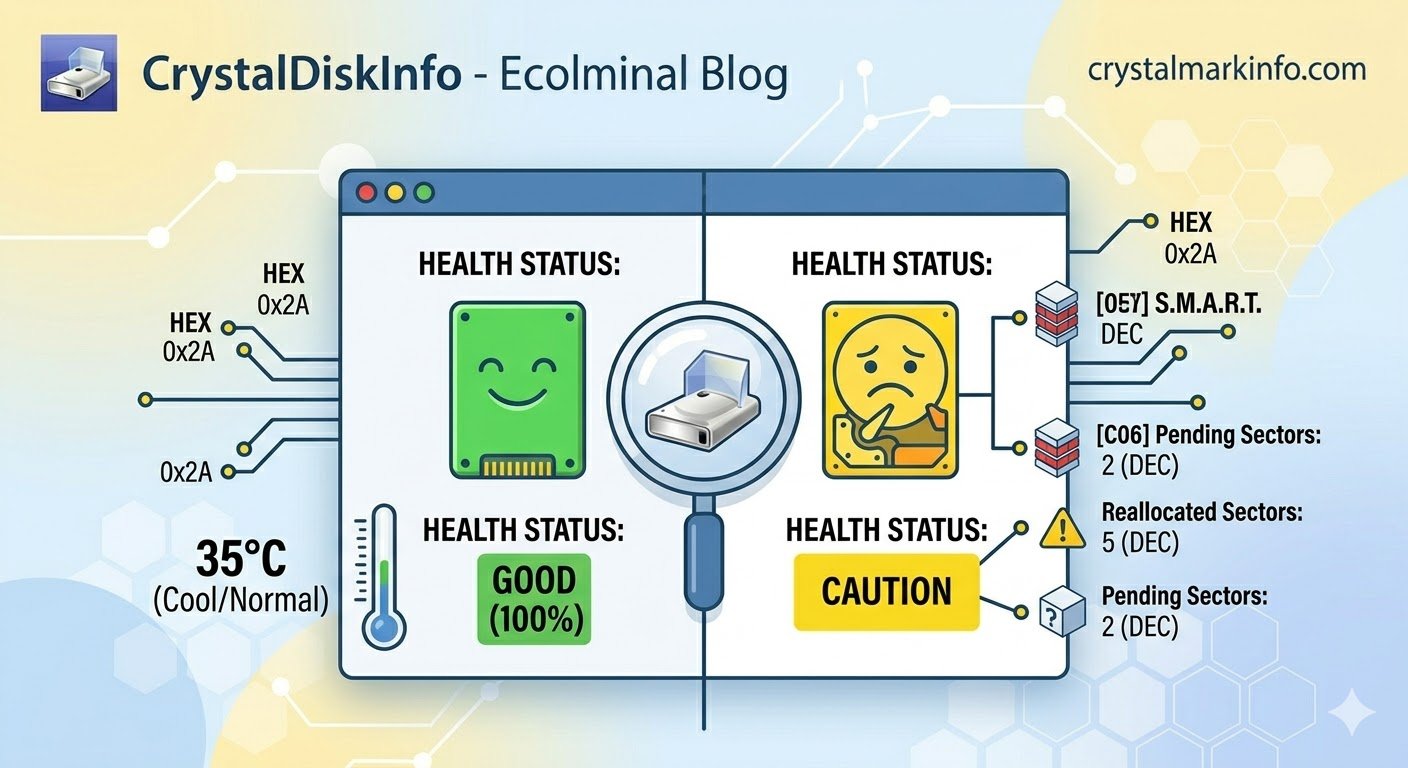
The easiest way to check your drive’s health is by looking at the large box in the top-left corner labeled Health Status. CrystalDiskInfo uses a simple color-coded system:
-
Blue / Green (Good): Your drive is perfectly healthy. There are no immediate signs of hardware failure.
-
Yellow (Caution): This is the most common warning. It means your drive has started to degrade and has found degraded or failing sectors. Action: Back up your important data immediately. You don’t need to throw the drive away yet, but its lifespan is decreasing.
-
Red (Bad): Your drive is actively failing or has already failed. Action: Stop using the drive, back up anything you can right now, and replace it.
-
Gray (Unknown): The software cannot read the S.M.A.R.T. data from this specific drive.
The Most Important S.M.A.R.T. Values to Watch
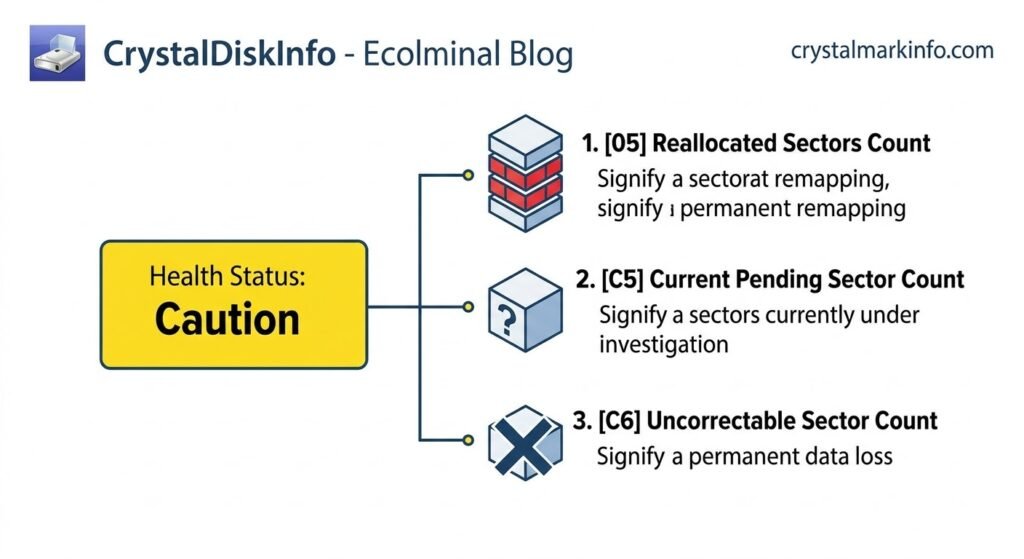
The bottom half of the screen shows your drive’s S.M.A.R.T. (Self-Monitoring, Analysis, and Reporting Technology) attributes. You don’t need to understand all of them. If your drive says “Caution,” it is usually because of one of these three critical attributes:
1. Reallocated Sectors Count
A “sector” is a tiny storage space on your drive. When a sector goes bad, the drive “reallocates” the data to a hidden backup sector. If this number is rising, your drive is running out of backup space and is physically degrading.
2. Current Pending Sector Count
These are sectors that the drive is having trouble reading right now. It is “pending” a decision on whether the sector is permanently dead. A high number here usually causes system freezes and blue screens.
3. Uncorrectable Sector Count
This is the worst of the three. It means a sector completely failed, and the data inside it could not be saved or moved. Data loss has likely occurred.
How to Read the “Raw Values”
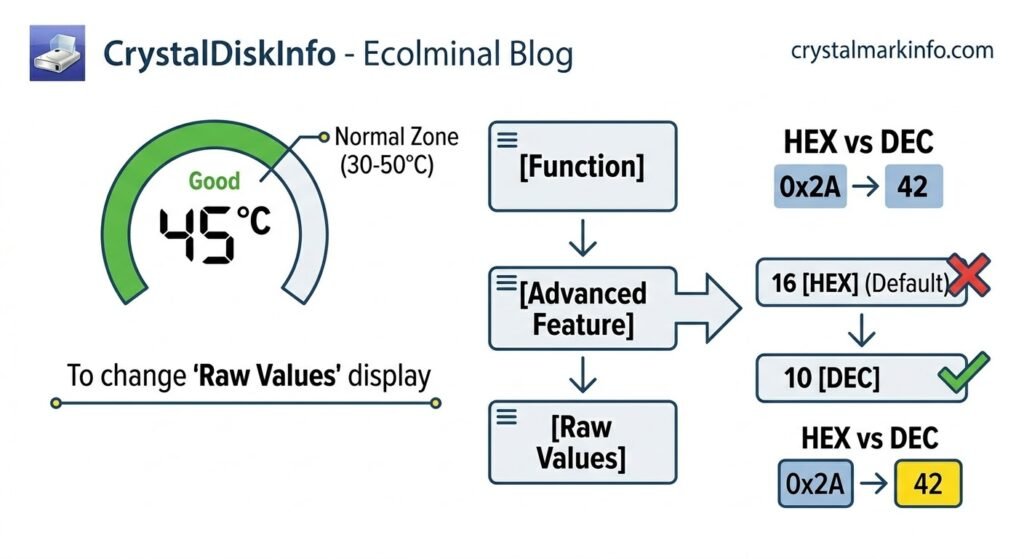
By default, CrystalDiskInfo displays the “Raw Values” column in Hexadecimal format (e.g., 00000000002A), which is confusing for most users.
How to change it to normal numbers (Decimal):
-
Click on Function in the top menu bar.
-
Hover over Advanced Feature.
-
Hover over Raw Values.
-
Select 10 [DEC].
Now, your Raw Values column will show normal numbers. If your Reallocated Sectors Count raw value says “5”, it means exactly 5 sectors have gone bad.
What is a Good Hard Drive Temperature?
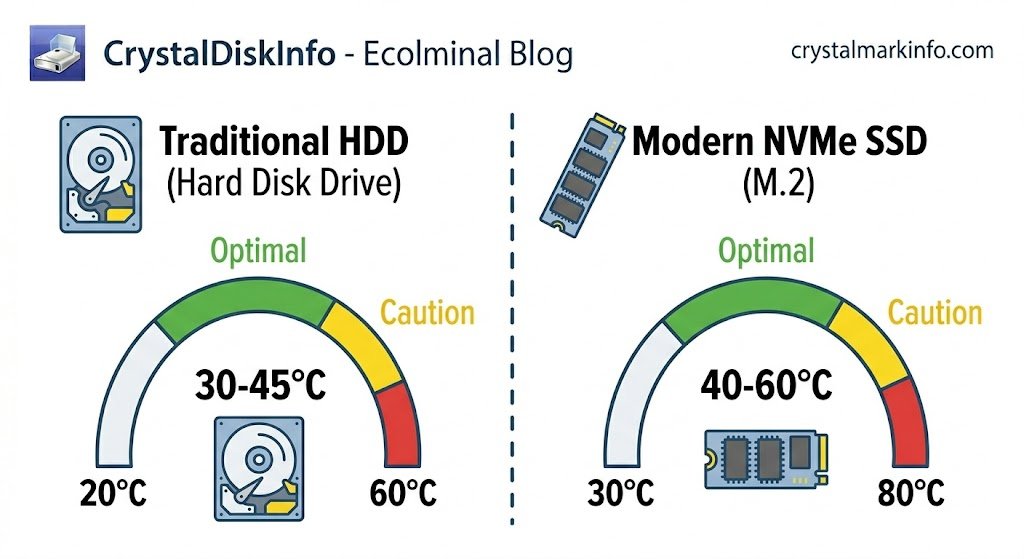
Next to your Health Status, you will see your drive’s temperature. Overheating is a major cause of premature drive failure.
-
Good / Normal: 30°C to 50°C
-
Warm (Needs Airflow): 51°C to 60°C
-
Dangerous (Too Hot): 60°C+
Pro Tip: NVMe M.2 SSDs naturally run hotter than traditional HDDs. Seeing an NVMe drive hit 60°C under heavy gaming or video editing loads is relatively normal, but it should cool down quickly afterward.
Reading CrystalDiskInfo results doesn’t have to be intimidating. By keeping an eye on your overall Health Status color, watching your temperature, and changing your Raw Values to decimal, you can easily monitor your PC’s storage health.
If your drive says “Caution” or “Bad,” don’t panic—just prioritize backing up your files!
Frequently Asked Questions (FAQ)
(Note for you: Wrap this section in FAQ Schema in WordPress so it shows up directly in Google Search results)
Can CrystalDiskInfo fix my hard drive? No. CrystalDiskInfo is purely a diagnostic and monitoring tool. It reads the data your drive reports. It cannot repair bad sectors or fix physical hardware damage.
How often should I check CrystalDiskInfo? For average users, checking once a month is plenty. If you have an older drive or one currently in “Caution” status, you can leave the program running in the background to alert you if temperatures spike or health drops further.
Why does my brand-new SSD say 99% health? SSDs have a limited number of total writes (TBW – Terabytes Written). As soon as you start installing Windows and downloading games, that percentage will slowly tick down. A 99% reading on a slightly used drive is perfectly normal and nothing to worry about.