
How to Fix ‘Caution’ Status in CrystalDiskInfo
You launched CrystalDiskInfo to check your drive’s health, and instead of a reassuring blue ‘Good’ icon, you’re staring at a bright yellow ‘Caution’ health status. Your heart drops. Is my data safe? Is my SSD dying? Can this be fixed?
The ‘Caution’ status is the most critical warning most users will see. It is CrystalDiskInfo telling you that while your drive has not failed yet, it has exceeded safe thresholds on vital health parameters.
This comprehensive guide will walk you through exactly what ‘Caution’ means, how to identify the specific failure points, how to rescue your data, and what steps (if any) you can take to “fix” the status.
What Does the ‘Caution’ Status Actually Mean?
CrystalDiskInfo doesn’t guess your drive’s health; it reads the S.M.A.R.T. (Self-Monitoring, Analysis, and Reporting Technology) data embedded in your storage drive’s firmware.
When the drive’s internal logic detects that certain critical attributes—like how many spare sectors it has used up or how many errors it can’t correct—have crossed a pre-set failure threshold, it flags that attribute. CrystalDiskInfo then aggregates these flags and displays the ‘Caution’ status.
Think of it like a ‘Check Engine’ light: Your car is still driving, but you are at high risk of a breakdown.
The Most Common Causes of ‘Caution’ (The Big Three)
While S.M.A.R.T. monitors dozens of attributes, ‘Caution’ is almost always triggered by one of these three critical errors:
-
Reallocated Sectors Count (05): This is the most common trigger. When a drive finds a corrupted sector, it retires it and moves the data to a ‘spare’ sector. When this count rises, your drive is running out of spares.
-
Current Pending Sector Count (C5): These are “unstable” sectors that the drive is waiting to test. If the test fails, they become Reallocated Sectors. This count often indicates an imminent failure.
-
Uncorrectable Sector Count (C6): This is the most serious. It means the drive encountered an error it could not read or write, even after multiple attempts. Data corruption has likely already occurred.
Step 1: Immediate Action—The Triage (DO NOT SKIP)
If you see the yellow ‘Caution’ icon, you must assume your drive is on its deathbed. You have one priority.
🛑 STOP WHAT YOU ARE DOING AND BACKUP NOW.
Do not run malware scans. Do not defragment. Do not install new software. Every read/write operation could be the one that causes the drive to fail completely.
Your Action Plan:
-
Connect an external hard drive, USB flash drive, or use a cloud storage service.
-
Manually copy your most essential files immediately: documents, photos, saved games, and irreplaceable data.
-
If you have large amounts of data, back up the most critical items first. If the drive fails mid-backup, at least you saved the essentials.
Only after your critical data is safe should you proceed to troubleshooting.
Step 2: Identify the Specific Failure Point
To know if a “fix” is possible, we need to know exactly which S.M.A.R.T. attribute triggered the warning.
-
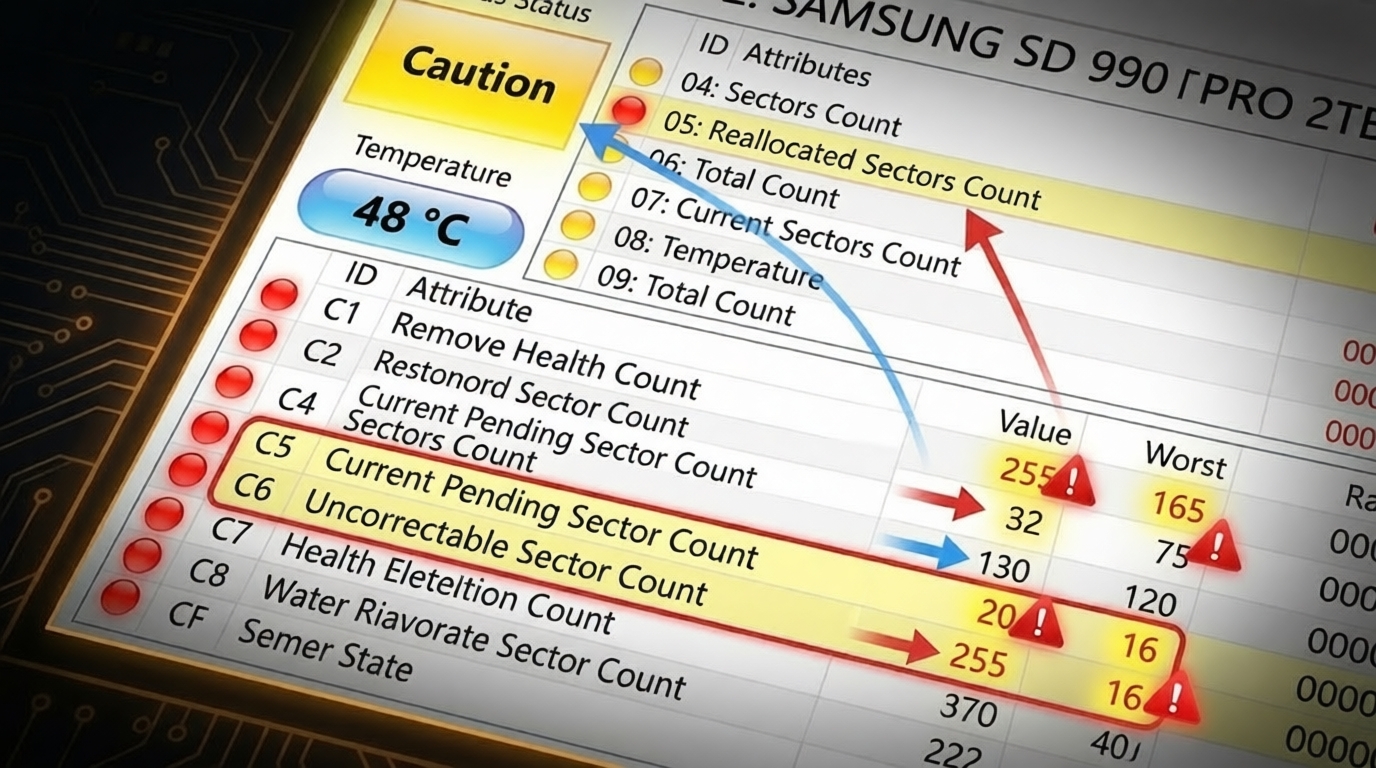
Look at the Main Interface: (See the highlighted example below)
-
Locate the Red or Yellow Markers: In the list of ID attributes, look for the rows marked with a yellow or red dot.
-
Read the Attribute Name: Is it
05,C5, orC6?
This screenshot shows a drive that is failing due to a critical increase in Reallocated Sectors (05) and Current Pending Sectors (C5). The red RAW values are the specific counts of those failures.
Caption: Identifying the Failing S.M.A.R.T. Data. This close-up view zooms in on the source of the problem. The small indicators next to ID 05 (Reallocated Sectors Count), C5 (Current Pending Sector Count), and C6 (Uncorrectable Sector Count) are now glowing red. Arrows directly link these flashing critical S.M.A.R.T. data points to the bright yellow ‘Caution’ status box, pinpointing the specific physical failures triggering the alert.
Step 3: Can You Actually “Fix” the ‘Caution’ Status?
Here is the hard truth: You cannot physically repair a failing hard drive or SSD.
Physical sector damage cannot be undone. You cannot “repair” the Reallocated Sectors Count. Once a sector is retired, it is gone forever. Your drive’s capacity has permanently degraded.
However, you can sometimes “fix” the ‘Caution’ status listing in CrystalDiskInfo by forcing the drive to re-evaluate unstable sectors (C5) or, in rare cases, by adjusting the application’s warning thresholds.
Here are the potential remedies based on your specific S.M.A.R.T. error:
Scenario A: Your Error is C5: Current Pending Sector Count (Potentially Fixable Status)
This is the only scenario where the ‘Caution’ status might disappear. Pending Sectors are unstable sectors the drive hasn’t decided what to do with yet. They might be bad, or they might just be experiencing a temporary write error.
The “Fix”: You must force the drive to write data to those specific sectors.
-
Run a Full Disk Scan (Chkdsk): Open Command Prompt as Administrator and run
chkdsk /r /f C:(replace C: with your drive letter). Windows will scan the entire drive and attempt to read and repair unstable sectors. This process can take hours and may stress a dying drive. -
Use a Secure Erase/Zero-Fill Tool: If Chkdsk fails, the absolute best method is a “Zero-Fill” or “Secure Erase.” This uses specialized software (like the drive manufacturer’s Western Digital Dashboard, Samsung Magician, or bootable tools like DBAN) to write zeros to every single sector on the drive. This forces the drive’s firmware to test every pending sector.
If the Zero-Fill completes successfully and the pending sectors are either successfully written to or officially reallocated (moved to ID 05), the C5: Current Pending Sector Count will drop back to zero, and the ‘Caution’ status (assuming no other errors) will return to blue ‘Good.’ Your drive is still permanently weaker, but the imminent warning is gone.
Scenario B: Your Error is 05: Reallocated Sectors Count (Not Fixable)
This cannot be fixed. The drive has already used up some of its spare sectors. The only outcome is that this number will eventually increase.
-
The Recommendation: Reallocated sectors indicate physical degradation. You must replace this drive as soon as possible. It is no longer reliable for operating system use or critical data storage. You might repurpose it for non-essential data (like a scratch disk for video editing or a temporary game installation drive), but only after a full Zero-Fill to stabilize it.
Scenario C: Your Error is C6: Uncorrectable Sector Count (Urgent Replacement Required)
This cannot be fixed. This is the most serious S.M.A.R.T. failure. It means your drive cannot read or write data from certain sectors, and it has no spares left to use.
-
The Recommendation: This drive is a data loss event waiting to happen. Stop using it immediately. Do not attempt to repair it. Replace it now.
Step 4: The Last Resort—Hiding the Warning (Use with Caution)
Sometimes, a drive may have a very low, stable number of reallocated sectors (e.g., 1 or 2 reallocated sectors that haven’t changed in three years). If you have stabilized the drive (via a Zero-Fill) and confirmed the counts are not increasing, you can manually adjust CrystalDiskInfo’s health thresholds to stop the ‘Caution’ warning.
WARNING: This does not fix the drive. It only hides the warning. Use this only on non-critical drives.
-
Open CrystalDiskInfo.
-
Go to
Function>Health Status Setting. -
Locate the specific attribute causing the ‘Caution’ (e.g., Reallocated Sectors Count).
-
Move the slider slightly to the right, increasing the threshold at which the warning triggers.
If the threshold is set above the current count, the health status will return to a blue ‘Good.’ Monitor this drive closely. If the counts begin to rise again, your “fix” has failed.
Summary and Final Recommendation
The yellow ‘Caution’ status in CrystalDiskInfo is not a bug; it is a critical health advisory from your storage hardware.
| CrystalDiskInfo Status | Meaning | Data Safety | Action |
| Good (Blue) | No critical S.M.A.R.T. errors. | Safe | Normal use. Monitor periodically. |
| Caution (Yellow) | Critical attributes (05, C5, C6) have exceeded thresholds. Drive is degrading. | At Risk | BACKUP NOW. Identify the specific error. Stabilize C5 if possible. Replace 05/C6 drives. |
| Bad (Red) | Drive has failed or is in an active state of failure. | Extreme Risk / Data Lost | Stop use immediately. Seek professional data recovery if data is not backed up. |