
What Does “Caution” Mean in CrystalDiskInfo? (Complete Guide)
Seeing a yellow “Caution” health status in CrystalDiskInfo? Learn exactly what triggers this warning, which S.M.A.R.T. values to check, and how to save your data before your drive fails.
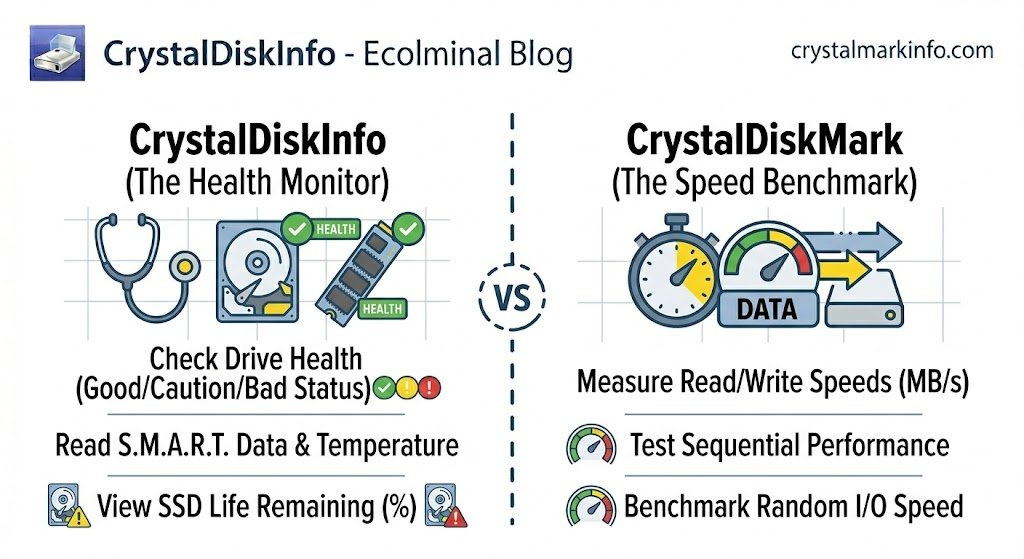
If you recently downloaded CrystalDiskInfo to check up on your PC and were immediately greeted by a bright yellow “Caution” badge, you are likely feeling a bit of panic. Hard drives and SSDs hold our most important files, photos, and projects, and seeing a warning about their health is never a good feeling.
But take a deep breath. A “Caution” status does not mean your hard drive will explode in the next five minutes. However, it is a serious warning light on your computer’s dashboard.
In this comprehensive guide, we will explain exactly why CrystalDiskInfo is showing you this warning, how to identify the specific problem, and the exact steps you need to take right now to protect your data.
What Triggers the “Caution” Status?
To understand the warning, you need to understand how CrystalDiskInfo works. The software doesn’t actually test your drive; instead, it reads a log file that your drive creates about itself. This log is called S.M.A.R.T. (Self-Monitoring, Analysis, and Reporting Technology).
Every modern Hard Disk Drive (HDD) and solid-state drive (SSD) has S.M.A.R.T. built in. The drive constantly monitors its own physical health, tracking everything from temperature to read/write errors.
CrystalDiskInfo triggers the yellow “Caution” status when one or more of your drive’s S.M.A.R.T. attributes drop below a safe threshold established by the manufacturer. It means your drive has detected physical degradation.
The 3 Critical S.M.A.R.T. Values (The Culprits)
When you see the Caution badge, look at the bottom half of the CrystalDiskInfo window. You will see a long list of attributes. One or more of these will have a yellow dot next to them.
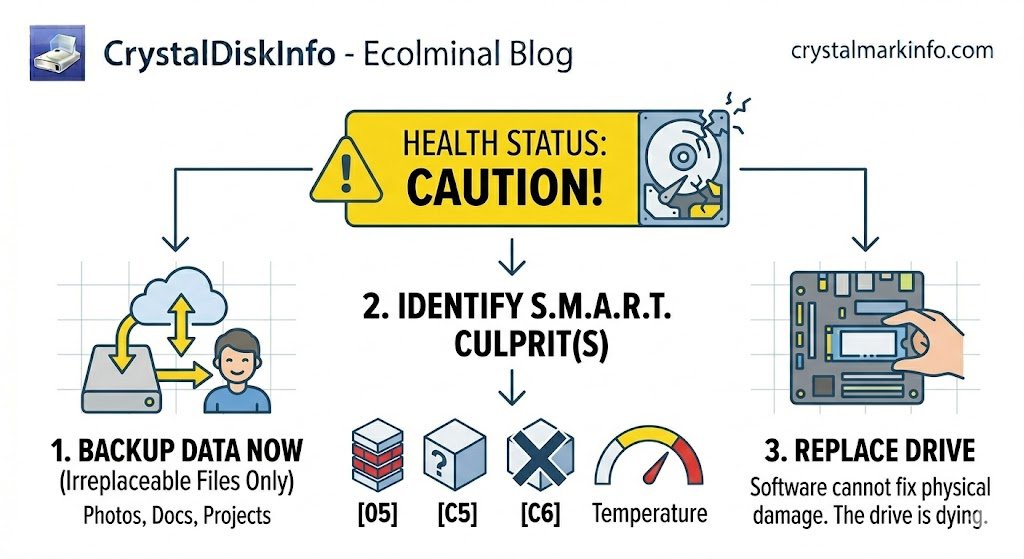
In 99% of cases, the Caution status is triggered by one of these three specific errors:
1. Reallocated Sectors Count
Think of your hard drive’s storage space like a massive parking lot, and your data is the cars. A “sector” is a single parking spot.
When a sector physically breaks and can no longer hold data, the drive’s internal controller notices. It takes the data from that broken spot and moves it to a secret, reserved backup sector (a “spare tire” parking spot). This is called a reallocation.
What it means: If this number is greater than zero, your drive is physically breaking down. It is using up its backup sectors. Once the backup sectors are gone, any new broken sectors will result in permanent data loss.
2. Current Pending Sector Count
This is the “investigation” phase. A pending sector is a spot on the drive that the computer tried to read, but failed.
The drive marks this sector as “pending.” It is waiting for you to try and write new data to that exact spot. If the new data writes successfully, the drive removes the warning. If it fails again, it officially declares the sector dead and moves it to the “Reallocated” list (Attribute [05]).
What it means: High pending sector counts often cause your computer to freeze, crash, or give you the “Blue Screen of Death” (BSOD) because Windows is trying and failing to read critical files.
3. Uncorrectable Sector Count
This is the most severe of the three warnings. An uncorrectable sector means that a physical area of the drive has completely failed, and the data that was stored there could not be recovered or moved to a backup sector.
What it means: Data loss has already occurred. A file, a piece of a program, or part of your operating system is permanently gone or corrupted.
Is My Hard Drive or SSD Dead?
If your status says “Caution,” your drive is not dead yet, but it is actively dying.
Hardware degradation is a one-way street. A drive with bad sectors might continue to work for two years, or it might completely brick itself in two days. The problem is that the drive can no longer be trusted. If you keep using it for important work, it is a gamble.
(Note: If the status is red and says “Bad,” the drive has already failed catastrophically. Stop using it immediately).
Step-by-Step: What to Do When You See “Caution”
Do not ignore the yellow badge. Follow these steps immediately:
Step 1: Stop Heavy Usage
Do not download large games, render heavy video files, or run intense disk defragmentation software. The harder the drive works, the faster those bad sectors will spread.
Step 2: Back Up Your Essential Data (Right Now)
This is the most important step. Grab a USB flash drive, an external hard drive, or open a cloud storage service like Google Drive or Dropbox.
Copy your irreplaceable files first: Family photos, tax documents, school assignments, and work projects.
Do not bother backing up installed programs or games; you can always redownload those later. Focus only on personal files.
Step 3: Plan for a Replacement
Once your data is safe, you need to buy a replacement drive. Software cannot fix physical hardware damage. If you are using an older mechanical Hard Drive (HDD), this is the perfect excuse to upgrade to a much faster Solid State Drive (SSD) or NVMe M.2 drive.
Can You Fix a Drive in “Caution” Status?
A common myth online is that you can “fix” bad sectors by running the Windows chkdsk /r command in the command prompt.
This is false. Software cannot repair physical damage on a magnetic disk or a dead flash memory cell on an SSD. Running a disk check simply tells Windows to locate the broken sectors and build a digital fence around them so the PC stops trying to use them.
While this might temporarily stop your computer from crashing, it puts immense stress on an already dying drive. In many cases, running a heavy disk check on a “Caution” drive is the final nail in the coffin that kills it completely.
The only true fix is a hardware replacement.
- Frequently Asked Questions (FAQ)
- Can I still use a drive with a Caution status for gaming?
If you have already backed up your important files and only use the drive to store easily downloadable Steam games, you can keep using it until it completely dies. Just expect longer load times and potential game crashes. - Why did my drive get bad sectors?For mechanical HDDs, it is usually age, physical bumps/drops while the drive is spinning, or extreme heat. For SSDs, it is usually reaching the limit of its write lifespan (TBW – Terabytes Written) or a sudden power outage that corrupted the flash memory.
- Does formatting the drive remove the Caution status?
- No. Formatting wipes the data, but the S.M.A.R.T. log is permanently stored on the drive’s internal memory chip. The bad sectors will still be there, and CrystalDiskInfo will still read them.