CrystalDiskInfo vs CrystalDiskMark: What’s the Difference? (2026 Guide)
Confused about CrystalDiskInfo vs CrystalDiskMark? We break down the exact differences between these two essential PC tools, what they do, and which one you actually need to download.
Introduction
If you are looking to check up on your computer’s storage drive, you have probably come across the name “Crystal Dew World” and its two most famous tools: CrystalDiskInfo and CrystalDiskMark.
Because the names are nearly identical, thousands of users download the wrong software every day. While both are completely free, incredibly useful, and created by the same developer, they do two totally different jobs.
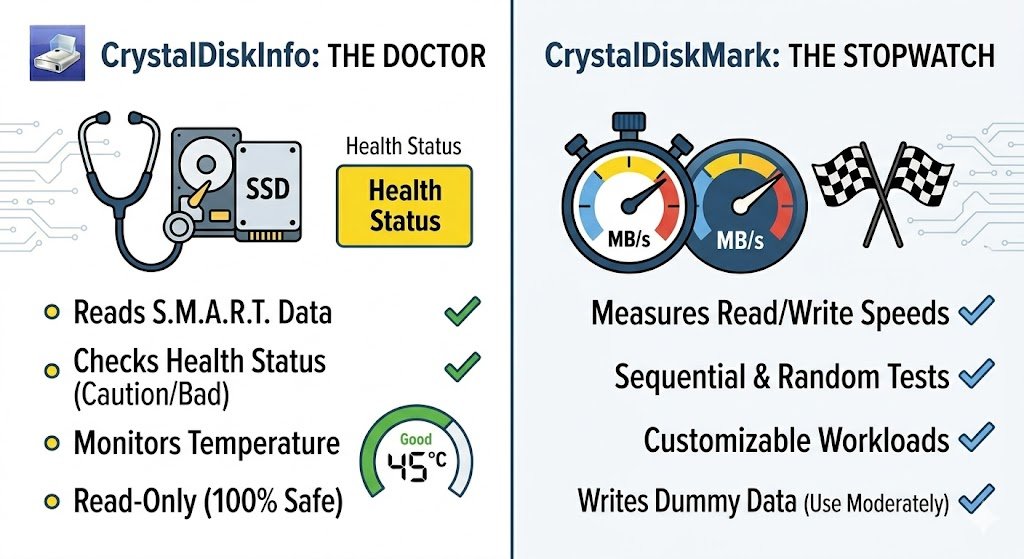
To put it simply: One is a doctor, and the other is a stopwatch.
In this guide, we will explain the exact differences between CrystalDiskInfo and CrystalDiskMark, what each tool is used for, and which one you need for your PC.
What is CrystalDiskInfo? (The Health Monitor)
CrystalDiskInfo is a diagnostic and health-monitoring tool. Think of it as a medical check-up for your Hard Disk Drive (HDD) or Solid State Drive (SSD).
It does not test how fast your drive is. Instead, it reads the internal log files of your drive (called S.M.A.R.T. data) to tell you if the hardware is healthy, dying, or already failing.
Key Features of CrystalDiskInfo:
-
Overall Health Status: Gives you a simple color-coded grade (Good, Caution, or Bad).
-
Temperature Monitoring: Shows you exactly how hot your drive is running in real-time.
-
Error Reporting: Tracks hardware degradation, such as Reallocated Sectors or Uncorrectable Errors.
-
Drive Details: Shows you the firmware version, serial number, total power-on hours, and total data written over the drive’s lifespan.
When to use it: You should use CrystalDiskInfo if your computer is crashing, freezing, showing the “Blue Screen of Death” (BSOD), or if you just bought a used drive and want to make sure it isn’t broken.
What is CrystalDiskMark? (The Speed Benchmark)
CrystalDiskMark is a performance benchmarking tool. Think of it as a racetrack for your storage. It does not care if your drive is healthy or dying; it only cares about how fast it can move data.
When you click “Start” in CrystalDiskMark, the software actively creates massive dummy files and forces your drive to read and write them as fast as possible. It then gives you a score in Megabytes per second (MB/s).
Key Features of CrystalDiskMark:
-
Sequential Testing: Measures how fast your drive can read/write single, massive files (like a 50GB 4K video).
-
Random Testing (RND4K): Measures how fast your drive can read/write thousands of tiny, scattered files (which is crucial for your Windows operating system speed).
-
Customizable Workloads: Lets you adjust the file sizes and test passes to push your hardware to the absolute limit.
When to use it: You should use CrystalDiskMark when you install a brand-new NVMe SSD and want to verify it actually hits the 7,000 MB/s speed printed on the box, or if you are a tech reviewer comparing two different brands of storage.
Side-by-Side Comparison
| Feature | CrystalDiskInfo | CrystalDiskMark |
| Primary Purpose | Health & Diagnostics | Speed Benchmarking |
| Reads S.M.A.R.T. Data | Yes | No |
| Measures Read/Write Speed | No | Yes |
| Monitors Temperature | Yes | No |
| Writes Data to Drive | No (Read-Only) | Yes (Heavy data writing) |
| Best For | Troubleshooting crashes | Testing new hardware |
Warning: Can Using These Tools Damage My Drive?
It is important to know how these tools interact with your hardware.
CrystalDiskInfo is 100% safe to leave running. Because it only reads text data that your drive is already reporting, it causes zero wear and tear. You can leave it open in the background 24/7 to monitor your temperatures.
CrystalDiskMark causes slight wear and tear. Solid State Drives (SSDs) have a limited lifespan based on how much data is written to them over their lifetime (known as Terabytes Written, or TBW). Because CrystalDiskMark works by writing dozens of Gigabytes of dummy data to your drive to test its speed, running it constantly will slowly degrade your SSD. Running it once or twice when you build a new PC is perfectly fine, but you should not run speed benchmarks every day.
Conclusion: Which One Should You Download?
-
Download CrystalDiskInfo if you are worried about your PC’s health, your computer is acting sluggish, or you want to make sure your data is safe from hardware failure.
-
Download CrystalDiskMark if you are an enthusiast who wants to test the maximum speed limits of your newly purchased gaming SSD.
For most standard users, CrystalDiskInfo is the essential tool to keep installed on your machine.