
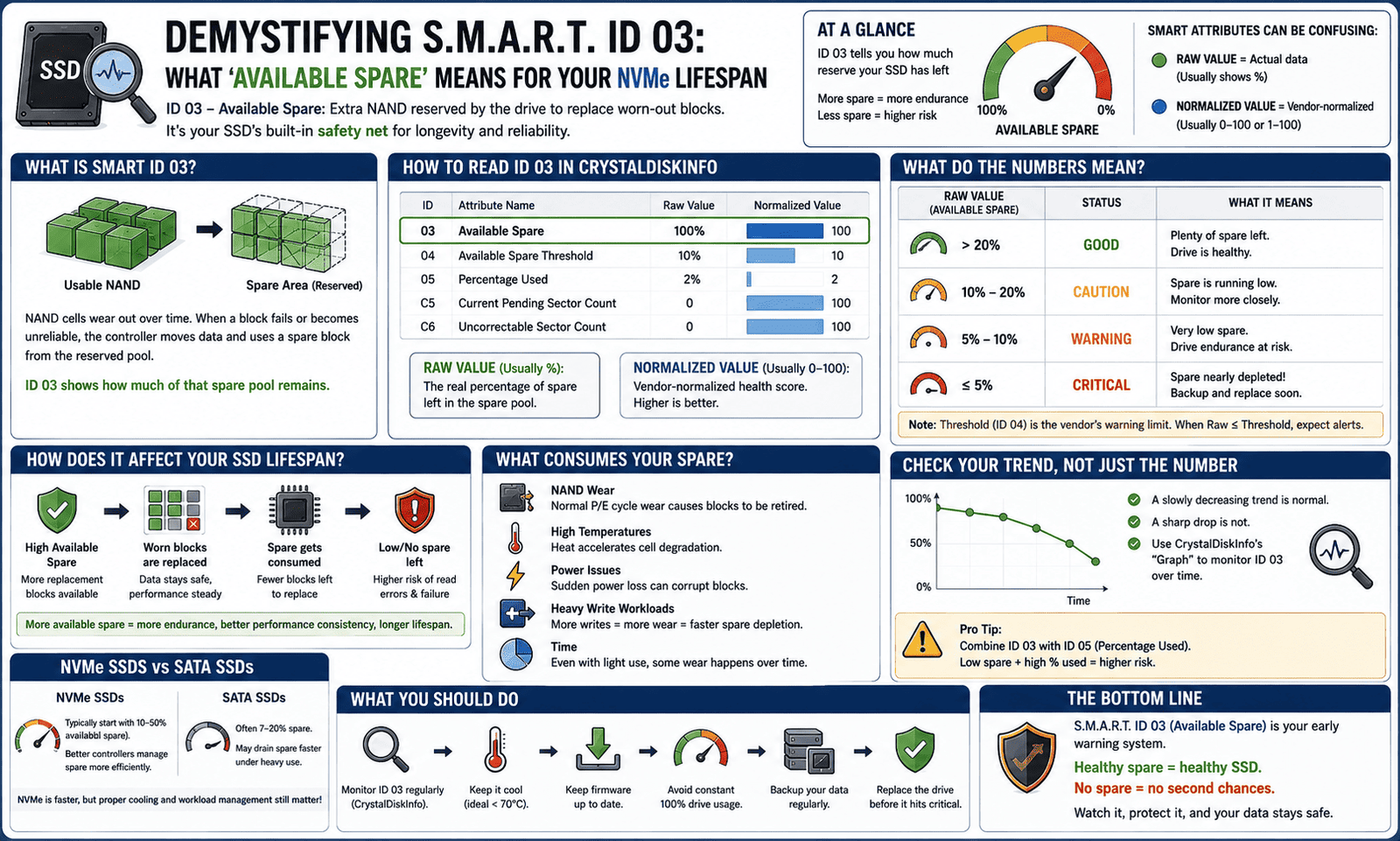
Demystifying S.M.A.R.T. ID 03: What ‘Available Spare’ Means for Your NVMe Lifespan
You launch CrystalDiskInfo just to check on your PC’s health, expecting the usual clean bill of health. Instead, you’re hit with a flashing yellow “Caution” box. You scroll down past the standard metrics, expecting to see broken sectors, but everything there looks perfectly clean. Instead, the warning dot is glowing right next to ID 03: Available Spare.
If you try to look up generic hard drive guides, they won’t help you. Most surface-level tech blogs talk endlessly about “Reallocated Sectors” on old mechanical drives, leaving a massive gap for modern solid-state storage users.
Seeing an available spare smart error in CrystalDiskInfo can cause immediate panic, especially when your total error counts look entirely normal. Here is a deep, technical, yet beginner-friendly guide explaining exactly what ID 03 means, how your NVMe drive manages its internal lifespan, and what you need to do next.
What Actually is “Available Spare” (ID 03)?
To understand this metric, we have to look at how an SSD is physically built. Unlike mechanical hard drives that use magnetic platters, an NVMe drive stores data on silicon chips inside microscopic rooms called flash cells.
Every time you write data to a cell, you have to blast it with electricity to shift its state. Over months and years of heavy use, this constant electrical wear physically degrades the cell until it can no longer reliably maintain a charge.
The engineers who design modern SSDs knew this would happen. To prevent your drive from losing storage capacity the moment a cell breaks, they build every drive with a hidden, factory-reserved pool of extra flash cells that are completely invisible to Windows. This is your Available Spare.
-
When the drive is brand new: Your Available Spare (ID 03) will sit firmly at 100%.
-
As the drive ages: When the primary NVMe flash degradation tracker flags a cluster of cells as worn out, the controller seamlessly retires them and maps a fresh cluster from the hidden reserve pool.
As the drive dips into this emergency backup pool, that 100% value begins to slowly tick down.
The Silent Caution: Why CrystalDiskInfo Flags ID 03
Here is the part that throws most users into a loop: Your drive can trigger a yellow Caution status even if you have zero active read/write errors.
Manufacturers hardcode a critical threshold level directly into the SSD’s internal firmware (usually set around 10%). If your remaining backup cell pool drops below that factory threshold limit, the drive controller panics and flags a health alert.
CrystalDiskInfo intercepts this S.M.A.R.T. telemetry and immediately updates your health box to “Caution.”
Think of it like the oil life monitor on your car’s dashboard. Your engine hasn’t broken down, and it isn’t actively smoking, but the vehicle is warning you that your vital reserves are dangerously low, and an outright failure is right around the corner. If your available spare pool hits 0%, the drive has completely run out of safety nets. The next cell that degrades will result in permanent, unrecoverable data corruption.
Can You Fix an ID 03 Warning?
If you are looking for a magical software patch to fix an ID 03 warning on your SSD, we have to give you a harsh reality check: You cannot physically regenerate worn-out silicon flash memory.
Unlike a temporary software glitch or unstable “Pending Sectors” (ID C5) that can sometimes be cleared out by running a full disk overwrite or an advanced Windows chkdsk scan, a drop in Available Spare is a reflection of permanent, physical wear and tear.
However, you should handle the warning based on how fast that number dropped:
Scenario A: The Gradual Decline (Normal Wear)
If you have owned your primary NVMe drive for four or five years, use it daily for heavy workflows like 4K video editing, rendering large datasets, or managing massive local AI databases, a slow decline down to the threshold is completely normal.
-
The Verdict: Your drive has served you well, but its physical lifespan is simply coming to an end. It is time to back up your system and order a modern replacement drive.
Scenario B: The Sudden Plunge (Potential Firmware Bug or Faulty Drive)
If you bought your drive less than a year ago, or if you check your drive metrics and notice the value dropped from 100% down to 10% in a matter of weeks, you are dealing with a severe hardware anomaly. Either a massive chunk of flash cells failed simultaneously due to a manufacturing defect, or your drive is suffering from a known firmware bug that miscalculates S.M.A.R.T. health states.
-
The Verdict: Check your drive manufacturer’s utility software (like Samsung Magician or Western Digital Dashboard) to see if a vital firmware update is available to fix the readout tracking. If the firmware is up to date and the pool is genuinely depleted, open an RMA request immediately—your drive is fully covered under its factory endurance warranty.
Summary Health Checklist
| Metric State (ID 03) | Risk Assessment | System Stability | Required Action |
| 100% to 50% | Safe / Healthy | Optimal Performance | Normal use. No intervention required. |
| 49% to 11% | Moderate Wear | Stable | Good time to double-check that your automated cloud backups are active. |
| 10% to 1% | CRITICAL (Caution) | At Risk | Drive reserves are depleted. Backup your data immediately and plan a replacement. |
| 0% | Extreme Danger (Bad) | High Risk of Data Loss | Stop writing new data to the disk. Replace the hardware immediately. |
The Bottom Line
Don’t ignore a S.M.A.R.T. ID 03 alert just because your PC still feels fast and responsive. The “Available Spare” parameter is your drive’s ultimate early warning system. It gives you an advance window to safeguard your irreplaceable personal photos, work documents, and system profiles long before the drive suffers a total, catastrophic hardware collapse.
Keep an eye on your percentages, manage your write cycles responsibly, and trust your diagnostic tools when they tell you it’s time for an upgrade!