
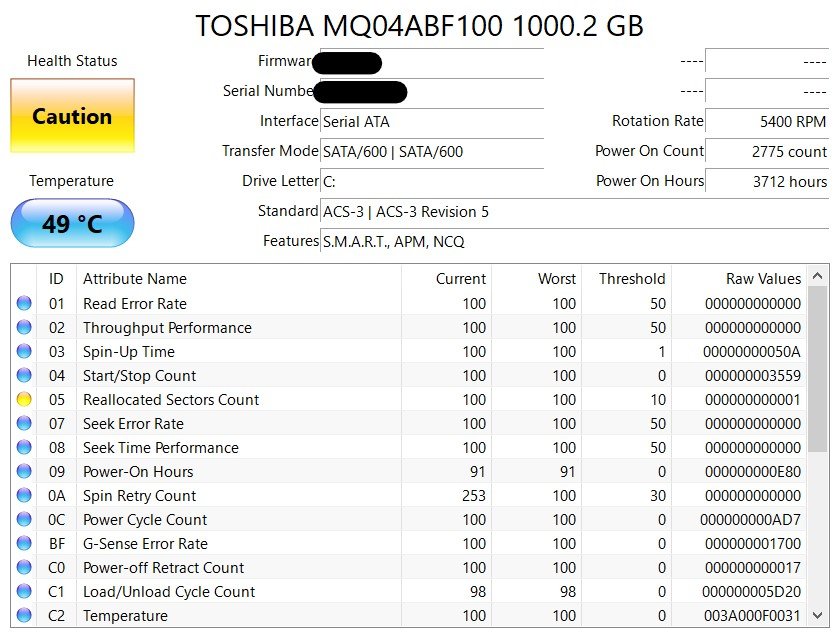
Reallocated Sectors Count: Is Your SSD Dying? (The Truth)
If you’ve opened CrystalDiskInfo and noticed a non-zero value for ID 05: Reallocated Sectors Count, you’re likely seeing a yellow “Caution” sign.
The short answer? Yes, your drive is beginning to fail physically, but it might not “die” today. Here is exactly what is happening inside your drive and what you need to do next.
What is a Reallocated Sector?
Every modern SSD and HDD is manufactured with a small “spare” area of storage that isn’t visible to Windows.
-
When the drive’s controller encounters a bad sector (a physical part of the disk that can no longer hold data), it permanently retires that sector.
-
It then “remaps” or reallocates the data to one of those spare sectors.
-
The Reallocated Sectors Count is simply a tally of how many times this has happened.
Is the Drive Dying? The “Rate of Change” Rule
A single reallocated sector isn’t an immediate death sentence. However, it is a sign of permanent physical degradation. To determine if your SSD is dying, you must monitor the Raw Value in CrystalDiskInfo over 24–48 hours.
| Trend | Risk Level | Meaning |
| Stable (Value stays the same) | Low/Medium | The drive found a flaw, fixed it using spares, and the damage isn’t spreading. |
| Increasing (Value goes up) | CRITICAL | The drive is actively “rotting.” Each new reallocated sector means the physical hardware is crumbling. |
Why SSDs are Different from HDDs
On an old-school Hard Drive (HDD), a reallocated sector often meant a physical scratch on the platter. On an SSD, it usually means the NAND flash cells are wearing out and can no longer maintain an electrical charge. Once an SSD starts reallocating sectors, it often snowballs quickly because the surrounding cells are under similar stress.
What Should You Do?
1. The “Zero-Increase” Test
If you see a count of, say, 10, write it down. Use your computer normally for a day. Re-check CrystalDiskInfo. If that 10 becomes 11 or 12, Shut down the PC immediately. Your drive is in an active failure state.
2. Check the “Health Percentage.”
In CrystalDiskInfo, look at the Percentage icon (e.g., 90% Good). If your Reallocated Sectors Count is high but the percentage is still high, the drive still has plenty of “spare” sectors left. If the percentage is dropping fast, the “spare pool” is empty.
3. Evacuate Critical Data
Don’t wait for the drive to hit 0%. SSDs, unlike HDDs, often fail “silently”—they don’t make noise; they just stop being recognized by the BIOS one morning.
-
Move: High-value photos, work documents, and crypto keys.
-
Leave: Games, OS files, and applications that can be re-downloaded.
Verdict: Replace or Keep?
-
If it’s your Boot Drive (C: Drive): Replace it. A failing OS drive causes blue screens (BSOD), file corruption, and “stuttering” in Windows.
-
If it’s a secondary Game Drive: You can keep using it until it dies, provided you don’t mind reinstalling your games later.
Pro Tip for crystalmarkinfo.com users: If your count is high, check your warranty. Many manufacturers like Samsung, Western Digital, and Crucial will honor an RMA (Replacement) if the S.M.A.R.T. data shows the drive is failing before the warranty period ends!