
CrystalDiskInfo Not Detecting Your Drive? (5 Easy Fixes)
Is CrystalDiskInfo not showing your external hard drive, USB, or internal SSD? Try these 5 simple fixes to resolve the “Disk Not Found” error and read your S.M.A.R.T. data.
Introduction
You suspect your hard drive might be failing, so you download CrystalDiskInfo to check its health. But when you open the software, your drive is completely missing from the top menu bar.
Seeing a blank screen or a “Disk Not Found” error in CrystalDiskInfo is incredibly frustrating. However, before you panic and assume your drive is completely dead, you should know that this is a very common software issue.
CrystalDiskInfo requires low-level hardware access to read S.M.A.R.T. data. Sometimes, Windows permissions, cheap USB enclosures, or outdated software can block this connection. Here are 5 easy ways to fix CrystalDiskInfo not detecting your drive.
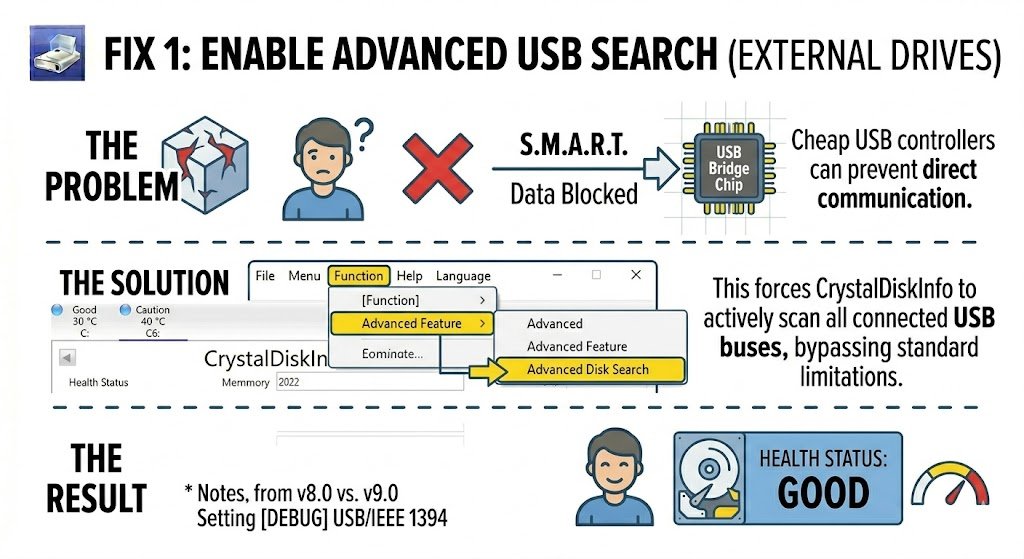
Fix 1: Enable Advanced USB Search (For External Drives)
By far, the most common reason CrystalDiskInfo cannot see a drive is because it is plugged in externally via USB. Many external hard drive enclosures use cheap “bridge chips” that block S.M.A.R.T. data from reaching the computer.
Furthermore, CrystalDiskInfo occasionally ignores USB drives by default to speed up its loading time. You need to force the software to look for them.
How to fix it:
-
Open CrystalDiskInfo.
-
Click on Function in the top menu bar.
-
Hover over Advanced Feature.
-
Click on Advanced Disk Search.
-
(Optional) If it still doesn’t appear, go back to
Advanced Featureand click on [DEBUG] USB/IEEE 1394.
Note: CrystalDiskInfo is designed for HDDs and SSDs. It generally cannot read standard USB Flash Drives (thumb drives) or SD cards, as those devices do not have S.M.A.R.T. monitoring chips built into them.
Fix 2: Run as Administrator
To talk directly to your motherboard and storage controllers, CrystalDiskInfo needs elevated Windows permissions. If you are running the program on a standard Windows user account without Admin rights, the software will be blocked from seeing your drives.
How to fix it:
-
Close CrystalDiskInfo completely.
-
Right-click on the CrystalDiskInfo shortcut (or the
.exefile). -
Select “Run as Administrator.”
-
Click “Yes” on the Windows User Account Control prompt.
Fix 3: Update to the Latest Version
Storage technology changes rapidly. If you are using a brand-new PCIe Gen 5 NVMe SSD, or a newly released external NVMe-to-USB enclosure, an older version of CrystalDiskInfo simply might not have the code required to recognize the new controller.
How to fix it: If you are running version 8.0 or older, it is time to upgrade. Head back to the CrystalMarkInfo homepage and download the latest version (v9.0+). Installing the newest version directly over your old one often fixes missing NVMe and external drive bugs instantly.
Fix 4: The RAID Array Limitation
Are you running two or more drives tied together in a RAID array (like RAID 0 for speed or RAID 1 for redundancy)?
The Hard Truth: CrystalDiskInfo does not support most hardware RAID controllers. When drives are put into a hardware RAID, the controller chip acts as a middleman and hides the individual S.M.A.R.T. data of the drives from Windows.
How to fix it: If you need to check the health of a drive inside a hardware RAID, you will either need to use the proprietary software provided by your RAID controller manufacturer (like Intel Rapid Storage Technology or AMD RAIDXpert), or you must temporarily remove the drive and plug it directly into a standard SATA port on your motherboard.
Fix 5: Check Windows Disk Management
If you have tried all the steps above and CrystalDiskInfo still cannot see your drive, we need to find out if Windows can even see it.
How to fix it:
-
Right-click on the Windows Start Button.
-
Select Disk Management from the menu.
-
Look through the list of drives at the bottom of the window.
-
If you see the drive here (even if it says “Unallocated” or “RAW”): Your drive is physically alive, but the partition is corrupted. You can try recovering data with software like DMDE or Recuva.
-
If the drive is completely missing from Disk Management: The drive is physically disconnected or dead. Check your SATA cables, try a different M.2 slot, or try a different USB cable. If it still doesn’t show up in Disk Management, the drive has suffered a fatal hardware failure and needs to be replaced.
Summary
CrystalDiskInfo is a powerful tool, but it relies on clear communication pathways to your hardware. By running the software as an Administrator,