
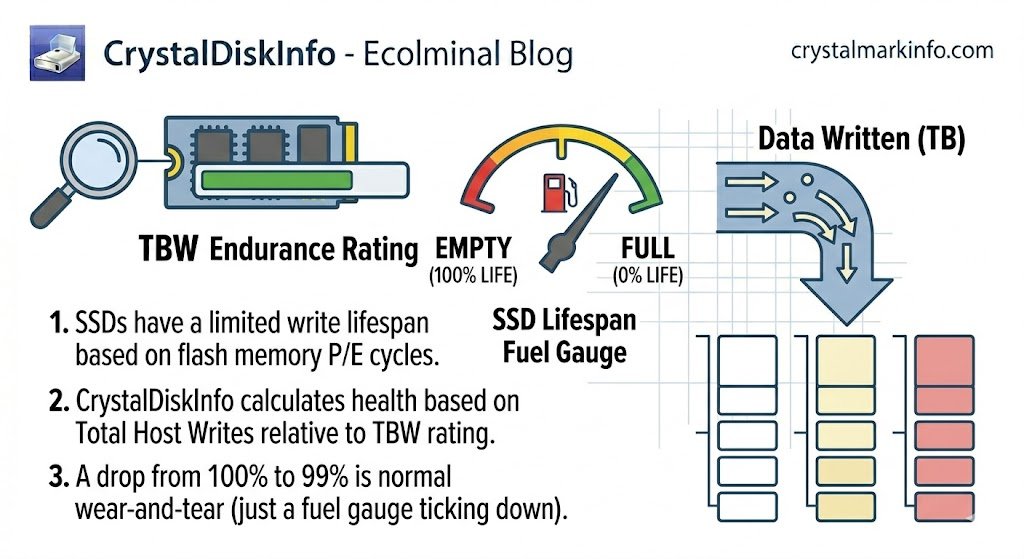
Why Your SSD Health Percentage is Dropping in CrystalDiskInfo (TBW Explained)
Worried about your SSD health dropping to 99% or lower in CrystalDiskInfo? Learn what Terabytes Written (TBW) means, why this is completely normal wear-and-tear, and when you should actually panic.
Introduction
You just built a new PC, or maybe you just downloaded CrystalDiskInfo to check on your laptop’s storage. You open the program, expecting to see a perfect 100% health score, but instead, your Solid State Drive (SSD) says 99%, 95%, or even 80% Good.
For many users, watching that health percentage tick down creates instant anxiety. Is the drive failing? Do you need to buy a new one? Did you do something wrong?
Take a deep breath. In the vast majority of cases, an SSD health percentage dropping in CrystalDiskInfo is completely normal and expected. In this guide, we are going to explain exactly how SSDs age, what Terabytes Written (TBW) means, and the critical difference between normal SSD wear-and-tear and dangerous Hard Drive (HDD) failures.
The Secret to SSDs: They Are Basically Erasers
To understand why your health is dropping, you have to understand how an SSD works.
Unlike traditional mechanical hard drives (HDDs) that use spinning magnetic platters and a physical needle to write data, SSDs use flash memory cells. You can think of these flash memory cells like a piece of paper and a pencil eraser.
Every time you save a file, download a game, or install a Windows update, the SSD “writes” to a cell. When you delete a file to make room for something else, the SSD has to “erase” that cell before it can write to it again.
Here is the catch: A flash memory cell can only be written to and erased a specific number of times before it wears out completely. This is called the Program/Erase (P/E) cycle.
What is TBW (Terabytes Written)?
Because flash memory degrades slightly with every write, SSD manufacturers give their drives an endurance rating called TBW (Terabytes Written).
TBW is the total amount of data you can write to the SSD before the manufacturer considers the warranty void and the drive begins to run out of usable memory cells.
-
Example: If you buy a 1TB Samsung 980 Pro, it has an endurance rating of 600 TBW. That means you can write 600 Terabytes of data to it before it theoretically exhausts its lifespan.
When CrystalDiskInfo shows your SSD health dropping from 100% to 99%, it is simply acting as a fuel gauge. It is looking at the total TBW rating of your drive, looking at how much data you have written so far, and doing the math.
A drop to 99% just means you have used up 1% of your drive’s total guaranteed lifespan. It is not an error; it is a progress bar.
SSD Normal Wear vs. HDD Bad Sectors (The Crucial Difference)
This is where most of the confusion happens. Users see an SSD at 95% and panic, assuming it is the same as an old hard drive failing. They are not the same.
The SSD Scenario (Normal Wear)
If your SSD is at 95% Health and the status is still Blue/Green (Good), your drive is perfectly fine. It is just aging gracefully. A drive at 80% health operates exactly as fast and as safely as a drive at 100% health. It just has fewer miles left on the tires.
The HDD Scenario (Hardware Damage)
If you have a traditional mechanical Hard Disk Drive (HDD) and CrystalDiskInfo shows a yellow Caution status, this is an entirely different story. HDDs do not have a “health percentage” based on TBW. If an HDD shows a warning, it means physical sectors on the magnetic disk have violently crashed and died (Reallocated Sectors).
-
To summarize: An SSD dropping to 90% is just tracking normal usage. An HDD triggering a “Caution” alert means physical hardware damage has occurred, and the drive is actively dying.
How to Check Your Total Data Written
Curious exactly how much data you have blasted through your SSD? CrystalDiskInfo tells you this right on the main screen!
-
Open CrystalDiskInfo.
-
Look at the top right corner of the window.
-
Find the box labeled Total Host Writes.
This box will tell you exactly how many Gigabytes (GB) or Terabytes (TB) of data your computer has written to that drive since the day it was manufactured. If you do heavy video editing or constantly uninstall and reinstall massive 100GB+ games, this number will climb quickly (and your health percentage will drop to match it).
When Should You Actually Worry About Your SSD?
While a slowly dropping percentage is normal, there are a few scenarios where you should take immediate action:
-
The Free-Fall: If your SSD health was 100% yesterday, and it is 80% today, something is wrong. An incredibly fast drop means a program is continuously writing background data (a runaway process), or the SSD controller is failing.
-
The “Bad” Status: If your SSD drops all the way to 0% health, or the CrystalDiskInfo status turns Red (Bad), the drive has exhausted its flash memory cells.
-
Read-Only Mode: When modern SSDs realize they are about to die, they often lock themselves into “Read-Only” mode. This means you can copy your files off the drive to save them, but you cannot save any new files, and Windows will crash if it tries to update. If this happens, your drive is done.
Conclusion
Seeing your brand-new SSD drop to 99% health in CrystalDiskInfo can be startling, but it is just the reality of how flash memory works. As long as the status says “Good,” you have nothing to worry about.
Just keep an eye on your Total Host Writes, avoid running unnecessary daily speed benchmarks (like CrystalDiskMark!), and your SSD will likely outlast the rest of the components in your PC.